Welcome to the most complete database of all AppImage packages and portable applications for GNU/Linux.
Main page "Portable-Linux-Apps.github.io"
| Go to the applications list | Install "AM", the package manager |
|---|---|
 |
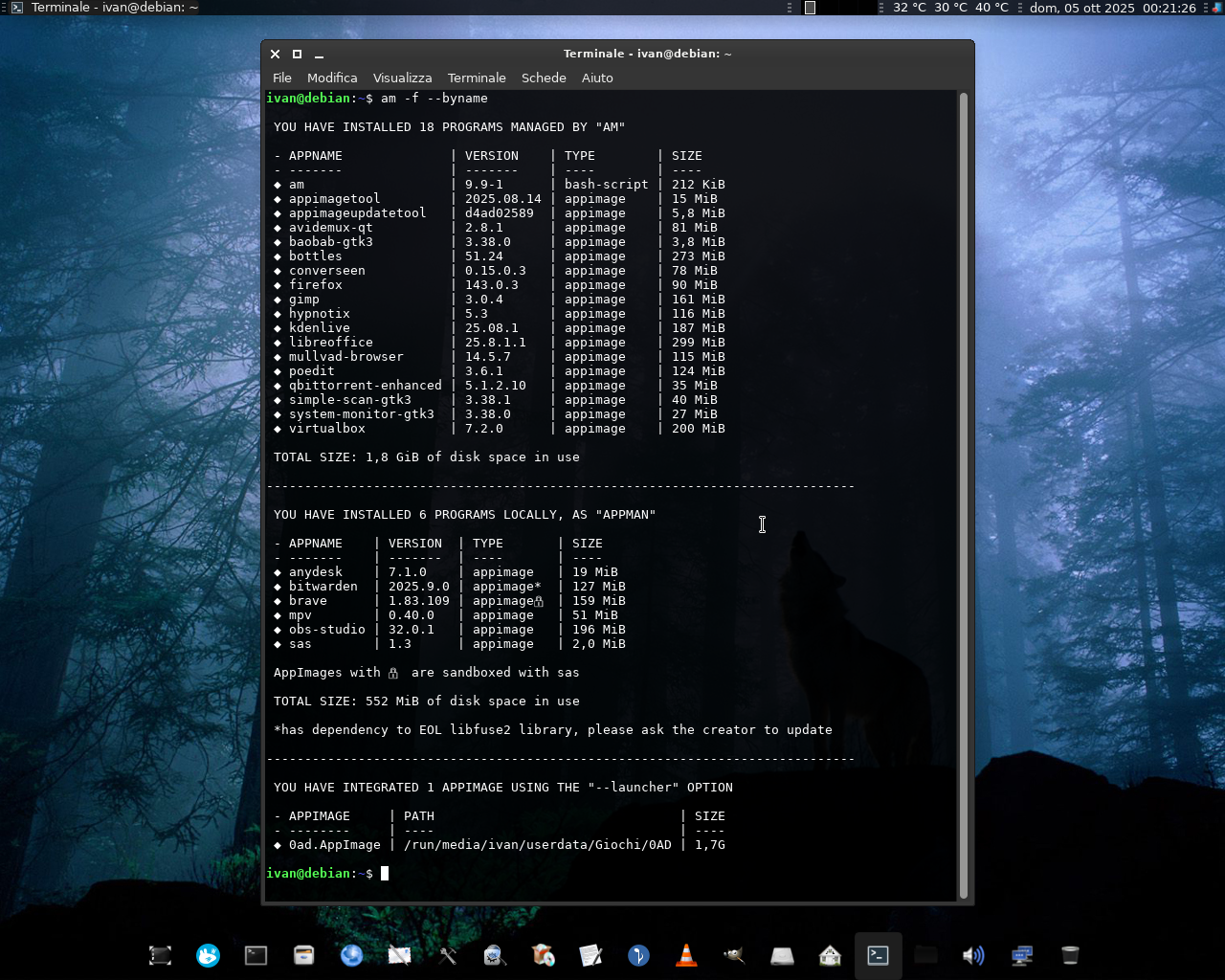 |
To test changes to the website before pushing or while working on a pull request, pick one of the two options below. Docker is recommended because the container matches the GitHub Pages build environment and works on any host Ruby version.
Uses the official ruby:3.3 image, which matches the Ruby version GitHub
Pages itself builds with. The first run takes a few minutes while
bundle install compiles native gems; the named jekyll-bundle volume
caches them so later runs start quickly.
# delete any host-generated lockfile so the container can regenerate one
rm -f Gemfile.lock

docker run --rm -it -p 4000:4000 \
  -v "$PWD:/srv/jekyll" -w /srv/jekyll \
  -v jekyll-bundle:/usr/local/bundle \
  ruby:3.3 \
bash -c "bundle install && bundle exec jekyll serve --host 0.0.0.0"- Install Jekyll
- In a terminal, change to the repository root directory
- run
bundle install(only needed the first time, or afterGemfilechanges) - run
bundle exec jekyll serve
Requires Ruby 3.0 - 3.3. The github-pages gem currently pins an old
version of jekyll-github-metadata (2.16.1) that crashes on Ruby 3.4+
with an instance_variable_defined? NameError. If your distribution
ships Ruby 3.4 or newer, use Docker (Option 1) or install Ruby 3.3 via a
version manager such as rbenv or
asdf. The Gemfile declares webrick in the
:development group so jekyll serve works on Ruby 3.0+ (GitHub Pages
production does not use webrick).
You will see messages that confirm that site has generated and the server is running. Then in your browser, navigate to http://127.0.0.1:4000 to confirm the changes you made are what you expected. Error messages will appear in the terminal window from where you ran Jekyll. When you change a file, the site will rebuild automatically (it will take a few moments and you'll be informed in the terminal when it's done). However, if you change '_config.yml', you must kill Jekyll with ctrl-c and run it again to test the change.
© 2020-present Ivan Alessandro Sala aka 'Ivan-HC' - I'm here just for fun!
| ko-fi.com | PayPal.me |
|---|