Web-based File Manager with modern interface and complete features to manage your server files.


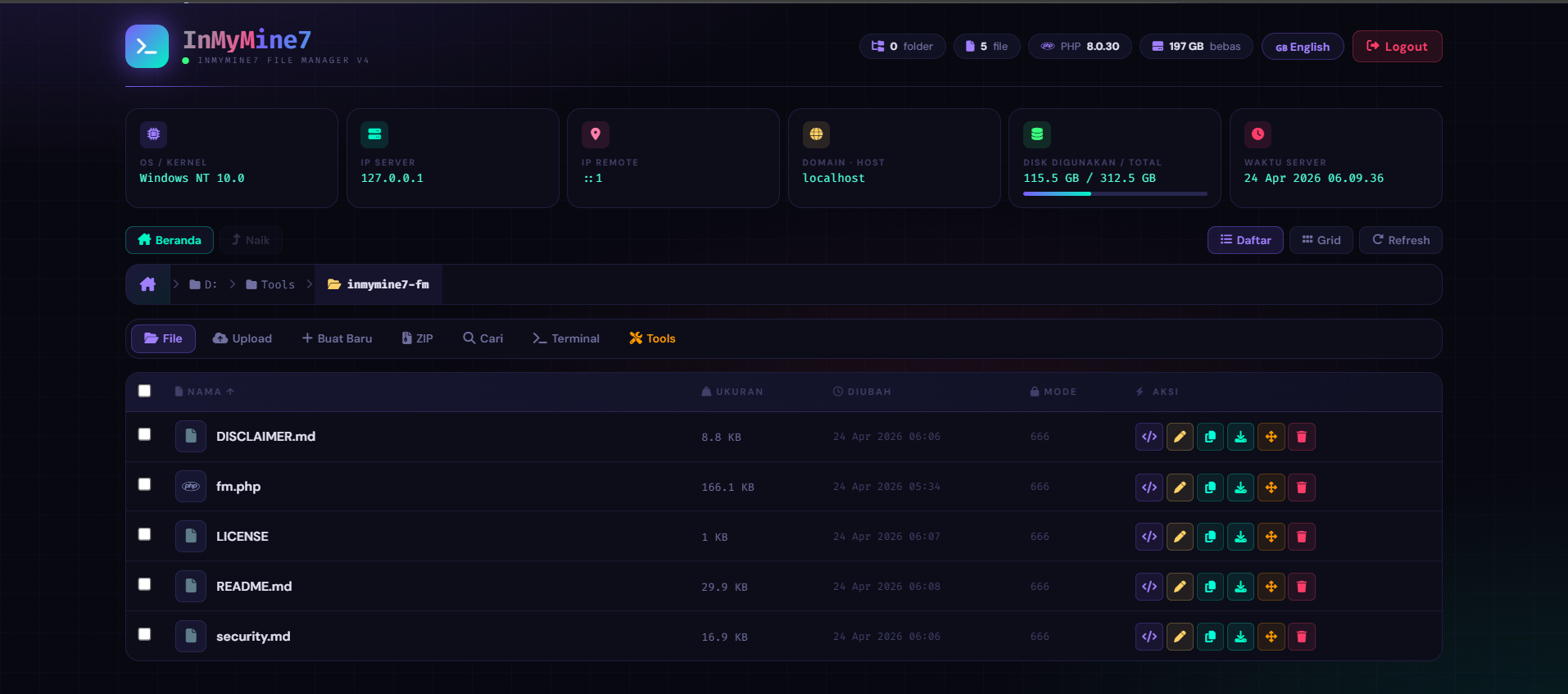
- Main Features
- System Requirements
- Installation
- Usage Guide
- Detailed Features
- Tools & Utilities
- Security
- Troubleshooting
- Important Documents
Before using this software, please read:
⚠️ disclaimer.md - Legal disclaimer and terms of use (REQUIRED)- 🔐 security.md - Comprehensive security guidelines (HIGHLY RECOMMENDED)
These documents contain critical information about liability, security best practices, and legal responsibilities.
- ✅ Browse Directories - Easy navigation with breadcrumb
- ✅ Upload Files - Drag & drop or click to upload (multi-file)
- ✅ Create Files/Folders - Create new files and folders quickly
- ✅ Edit Files - Built-in text editor with syntax highlighting
- ✅ Rename - Change file and folder names
- ✅ Duplicate - Duplicate files easily
- ✅ Download - Download individual files or ZIP archives
- ✅ Copy/Move - Copy or move files between folders
- ✅ Delete - Delete files with security confirmation
- ✅ Bulk Actions - Perform operations on multiple selected files
- 📦 Create ZIP - Compress files to ZIP format
- 📦 Extract ZIP - Extract ZIP files easily
- 📦 Download ZIP - Download folders as ZIP
- 🔍 Recursive Search - Search files across all directories
- 🔍 Filter Results - Display search results with details
- 🔍 Pattern Matching - Search by file name
- 💻 Terminal Integration - Run shell commands directly
- 💻 Command History - History of executed commands
⚠️ Safe Execution - Controlled execution with security warnings
- 🛠️ PHP Info
- 🛠️ Image Conversion & Resize
- 🛠️ Base64 Encoder/Decoder
- 🛠️ Hash Generator (MD5, SHA1, SHA256)
- 🛠️ .htpasswd Generator
- 🛠️ Cron Expression Builder
- 🛠️ Chmod Calculator
- 🛠️ JSON Formatter & Validator
- 🛠️ Regex Tester
- 🛠️ System Info
- 🛠️ UUID Generator
- 🛠️ URL Encoder/Decoder
- 🛠️ Text Statistics
- 🛠️ Password Generator
- 🛠️ Timestamp Converter
- 🎨 Modern Dark Theme - Elegant and comfortable UI design
- 🎨 Responsive Design - Compatible with mobile and desktop
- 🎨 View Modes - List and grid view modes
- 🎨 Multi-Language - Indonesian & English support
- 🎨 System Information - OS, IP, Disk, Server time info
- PHP: 7.4 or newer
- Web Server: Apache, Nginx, or LiteSpeed
- Browser: Chrome, Firefox, Safari, Edge (latest)
- Permissions: PHP must have read/write access to directories
- PHP 8.0+
- SSD storage for better performance
- Minimum 512MB RAM
Before installing, verify:
- ✅ PHP 7.4 or higher is installed on your server
- ✅ You have FTP or file manager access to your server
- ✅ You have a text editor for editing
fm.php - ✅ You know your domain/server address
# Option A: Using wget
wget https://raw.githubusercontent.com/InMyMine7/InMyMine7-FileManager/main/fm.php

# Option B: Using curl
curl -o fm.php https://raw.githubusercontent.com/InMyMine7/InMyMine7-FileManager/main/fm.php

# Option C: Direct download from browser
# Visit https://github.com/InMyMine7/InMyMine7-FileManager and download fm.php
Verify the download:
- File size should be around 50-100KB
- Check that it's a valid PHP file (has
<?phpat the start)
Before uploading, edit fm.php and change the password:
// Find this line (approximately at line 3-5):
$password = 'admin'; // Ganti password sesuai kebutuhan

// Change it to your own secure password:
$password = 'your_very_strong_password_123!@#';
Password Requirements:
- Minimum 8 characters
- Mix of uppercase, lowercase, numbers, and symbols
- Example:
Fm@nag3r_S3cur3!
- Open your FTP client (FileZilla, WinSCP, etc.)
- Connect to your server:
- Host:
ftp.your-domain.comoryour-ip-address - Username: Your FTP username
- Password: Your FTP password
- Host:
- Navigate to your web root (usually
public_htmlorwww) - Upload
fm.phpto desired location:- Root:
/public_html/fm.php - Subfolder:
/public_html/admin/fm.php
- Root:
- Set file permissions to
644(read/write for owner, read for others)
- Log in to your hosting control panel
- Go to File Manager
- Navigate to web root directory
- Click "Upload" and select
fm.php - Right-click uploaded file → Change Permissions to
644
# Connect to your server
ssh user@your-domain.com

# Navigate to web directory
cd /home/user/public_html

# Upload using SCP from local machine
scp fm.php user@your-domain.com:/home/user/public_html/

# Set proper permissions
chmod 644 fm.php
chmod 755 . (current directory)- Check file exists on server:
ls -la fm.php # Output should show: -rw-r--r-- (644 permissions) - Check PHP syntax:
php -l fm.php
# Should output: No syntax errors detected
Direct access:
http://your-domain.com/fm.php

With subfolder:
http://your-domain.com/admin/fm.php

Local testing:
http://localhost/fm.php
http://127.0.0.1/fm.php
What you should see:
- Modern login page with InMyMine7 branding
- Password input field
- Blue "Login" button
- Dark theme interface
- Enter your custom password (the one you set in Step 2)
- Click "Login" button
- Wait for page to load
- You should see the file manager interface
If login fails:
- Check CAPS LOCK (password is case-sensitive)
- Clear browser cookies
- Try in incognito/private mode
- Check browser console for errors
// After first login, edit fm.php and consider:

// 1. Change password again
$password = 'new_stronger_password_2024!@#';

// 2. Rename the file
// Don't use obvious names like 'admin.php' or 'manager.php'
// Use something obscure like: 'c7k9m2x4_fm.php'

// 3. Move to non-public directory (if possible)
// Store in parent directory outside public_htmlAfter login, test these features:
- ✅ Navigate folders (click folders in the file list)
- ✅ View system info (click "Tools" tab, then "System Info")
- ✅ Try search function with a test query
- ✅ Try creating a test file or folder
- ✅ Try uploading a small test file
- Password Security - Always change the default password BEFORE deploying
- File Permissions - Set
fm.phpto 644, directories to 755 - HTTPS Only - Use HTTPS (SSL) in production, never HTTP
- Firewall - Consider restricting access by IP if possible
- Backups - Keep backups of your files before using file operations
- Disclaimer - Read disclaimer.md for important legal information
- Security - Read security.md for comprehensive security guidelines
-
Login to Application
- Open fm.php in your browser
- Enter the correct password
- Click "Login" button
-
Navigate Folders
- Click folder name to open it
- Use breadcrumb at the top for quick navigation
- Click "Home" to return to root directory
- Click "Up" to return to parent folder
-
Change Language
- Click the flag (🇬🇧) in the top right to toggle language
- Options: Indonesian (🇮🇩) or English (🇬🇧)
- Preference is saved in cookies
-
Logout
- Click "Logout" button in sidebar
- Your session will be cleared and you'll return to login
Main view showing all files and folders in current directory.
Features:
- View files with icons based on type
- File size, modification date
- File permission mode
- Actions: Open, Edit, Rename, Duplicate, Download, Copy/Move, Delete
View Modes:
- List - Detailed table view
- Grid - Visual card view
Bulk Select:
- "Select All" checkbox to select all files
- Or click individual checkboxes
- After selection, use bulk actions (ZIP, Delete, etc.)
Upload one or multiple files to current folder.
How to Use:
- Click upload area or drag & drop files
- Select one or more files (multi-file support)
- Files will upload automatically
- Refresh to see newly uploaded files
Examples:
- Upload website:
index.html, style.css, script.js - Upload images:
photo1.jpg, photo2.png - Upload documents:
report.pdf, data.xlsx
Create new files or folders in current directory.
Creating New File:
- Fill in "New file" with name (e.g.:
index.php) - Click "Create File"
- Empty file will be created with extension based on name
Creating New Folder:
- Fill in "New folder" with name (e.g.:
assets) - Click "Create Folder"
- Folder will be created and ready to use
Name Examples:
- index.php
- style.css
- config.json
- uploads (folder)
- assets (folder)
Compress files into ZIP archive.
How to Create ZIP:
- Select files to ZIP from the file list
- Enter ZIP name (e.g.:
backup.zip) - Click "Create ZIP"
- ZIP file will be created in current folder
How to Extract ZIP:
- Click
.zipfile in Files tab - Select "Extract"
- ZIP will be extracted to a new folder
Download Folder as ZIP:
- In Files tab, click "Download ZIP" on a folder
- Entire folder contents will be compressed and downloaded
Search for files and folders recursively.
How to Search:
- Enter file or folder name to search for
- Click "Search"
- Results will show all matches in subfolders
Tips:
- Use lowercase for broader results
- Searching "php" will find all
.phpfiles - Search is case-insensitive
Examples:
Search: "config" → Find: config.php, config.json, config.ini
Search: ".js"    → Find: all JavaScript files
Search: "backup" → Find: backup.sql, backups (folder), etc.
Run shell/terminal commands directly from browser.
- Use responsibly and only for authorized administration
- Don't share this access with untrusted people
- Some dangerous commands may be blocked
Example Commands:
# System information
ls -la              # List files with details
pwd                 # Show current directory
whoami              # Show current user
date                # Show date and time
uname -a            # Show OS/Kernel info

# File operations
cat file.php        # Read file contents
cp file.php backup/ # Copy file
mv file.php new.php # Rename file
mkdir newfolder     # Create folder
rm file.txt         # Delete file
chmod 755 script.sh # Change permission

# Network
curl https://example.com/file.zip -O    # Download file
ping google.com                         # Test connection
netstat -an                             # Network status
How to Use:
- Enter command in input field
- Click "Run"
- Output will display below
Access various important utilities and tools.
See Tools & Utilities section for complete details.
Display complete information about your PHP installation.
Information Displayed:
- PHP version
- Installed extensions
- Configuration settings
- Memory limit, upload max size
- Server info, disable functions
Use Case: Debugging, troubleshooting, verify server setup
Convert image formats and resize images.
Features:
- Select image from server
- Convert to different format (JPG, PNG, WebP, etc.)
- Resize with width & height (pixels)
- Set output quality (1-100)
- Save conversion result
Example:
Input:  photo.png (2000x1500px)
Process: Convert to JPG, resize to 800x600px, quality 85%
Output: photo-optimized.jpg (smaller)
Encode or decode Base64 text.
Encode:
- Input plain text
- Output: Base64 text
- Use for: URL encoding, email, data transfer
Decode:
- Input: Base64 string
- Output: Original text
- Verify data integrity
Example:
Encode: "Hello World" → "SGVsbG8gV29ybGQ="
Decode: "SGVsbG8gV29ybGQ=" → "Hello World"
Generate hash from text using various algorithms.
Available Algorithms:
- MD5 (Legacy, fast)
- SHA1 (Legacy, fast)
- SHA256 (Modern, secure)
Use Cases:
- Verify file integrity
- Generate password hash
- Checksum data
Example:
Input: "password123"
MD5:    5f4dcc3b5aa765d61d8327deb882cf99
SHA1:   482c811da5d5b4bc6d497ffa98491e38
SHA256: ef92b778bafe771e89245d171bafed6f56d4d2722213e0e12394fbf675ace20c
Generate password for .htpasswd file (Apache).
Use Cases:
- Password protect folders/applications
- Basic HTTP authentication
- Additional security layer
How to Use:
- Enter username
- Enter password
- Select algorithm (MD5, SHA)
- Copy result to
.htpasswdfile
Builder and tester for cron expressions.
Cron Format:
* * * * *
│ │ │ │ │
│ │ │ │ └─ Day of week (0-6)
│ │ │ └─── Month (1-12)
│ │ └───── Day of month (1-31)
│ └─────── Hour (0-23)
└───────── Minute (0-59)
Examples:
0 9 * * 1    → Every Monday at 9:00 AM
0 0 1 * *    → Every 1st at 00:00
*/5 * * * *  → Every 5 minutes
0 8-17 * * * → Every hour 8 AM to 5 PM
Calculate file permission values in octal.
Permission Bits:
- 4 (r) = Read
- 2 (w) = Write
- 1 (x) = Execute
Example Combinations:
755 → rwxr-xr-x (executable, full for owner)
644 → rw-r--r-- (readable, write only for owner)
777 → rwxrwxrwx (full access for everyone)
700 → rwx------ (only owner access)
How to Use:
- Select read/write/execute combination for Owner, Group, Others
- Get octal value (example: 755)
- Use
chmod 755 filenamein terminal
Format and validate JSON.
Features:
- Paste raw JSON
- Auto-format with indentation
- Validate JSON syntax
- Highlight errors if any
- Copy result to clipboard
Example:
Input:
{"name":"John","age":30,"city":"Jakarta"}

Output (formatted):
{
  "name": "John",
  "age": 30,
  "city": "Jakarta"
}Test and debug PHP regular expressions.
Features:
- Input regex pattern
- Input string for testing
- Show all matches
- Test different patterns
Example:
Pattern: /^[a-z0-9]+@[a-z.]+$/i
String:  user@example.com
Result:  Match found! ✓
Display complete server and PHP information.
Information Displayed:
- OS / Kernel
- PHP Version
- Server IP Address
- Remote Client IP
- Domain / Hostname
- Disk Usage (Used / Total)
- Server Time
- Shell availability
- Memory usage
- Processor info
Generate random UUID v4.
Use Cases:
- Unique identifier for database
- Session ID
- Unique token
- Random data ID
Format:
550e8400-e29b-41d4-a716-446655440000
Encode or decode URL strings.
Encode:
- Convert special characters to %XX
- Use for query parameters
- Safe for URLs
Decode:
- Convert %XX back to original characters
- Read URL parameters
Example:
Encode: "Hello World!" → "Hello%20World%21"
Decode: "Hello%20World%21" → "Hello World!"
Calculate text statistics.
Statistics Calculated:
- Total characters (with spaces)
- Total characters (without spaces)
- Total words
- Total lines
- Total sentences
Use Cases:
- SEO analysis (character/word count)
- Plagiarism detection
- Content analysis
Generate secure random passwords.
Options:
- Password length (8-64 characters)
- Include uppercase (A-Z)
- Include lowercase (a-z)
- Include numbers (0-9)
- Include special chars (!@#$%^&*)
Example Result:
K8@mPx#nR2$vQs9L
Convert between Unix timestamp and date.
Convert Timestamp to Date:
Input:  1234567890
Output: 2009-02-13 23:31:30
Convert Date to Timestamp:
Input:  2009-02-13 23:31:30
Output: 1234567890
Before deploying, read: security.md
This contains comprehensive security guidelines and best practices.
// CRITICAL: Always change password BEFORE deploying
// DO NOT use 'admin' in production

$password = 'YourStrongPassword123!@#';

// Requirements:
// - Minimum 16 characters
// - Mix of uppercase, lowercase, numbers, special characters
// - No dictionary words or personal information
// - Example: K9#mPq2@xFvL7$bN- Always access via HTTPS (secure connection)
- Never use HTTP in production
- Use SSL/TLS certificate from Let's Encrypt or CA
- Add security headers for HSTS protection
# Force HTTPS in .htaccess
RewriteEngine On
RewriteCond %{HTTPS} off
RewriteRule ^(.*)$ https://%{HTTP_HOST}%{REQUEST_URI} [L,R=301]# Only allow specific IPs in .htaccess
<Files fm.php>
Order Deny,Allow
Deny from all
Allow from 192.168.1.100 # Your office IP
Allow from 203.0.113.50 # Your home IP
</Files>- Don't use obvious names like
admin.phpormanager.php - Use something obscure:
c7k9m2x4_fm.php - Store outside public directory if possible
# File permissions
chmod 600 fm.php        # Read/write for owner only
chmod 644 .htaccess     # Read for all, write for owner

# Directory permissions
chmod 755 ./            # Standard directory
chmod 700 ./            # Restricted access

# Upload directory
chmod 755 uploads/

# Verify
ls -la fm.php
# Output: -rw------- (600 is ideal)If you don't need terminal features:
# In php.ini
disable_functions = shell_exec, exec, system, passthru, proc_open- Backup all files and data regularly
- Store backups in secure, off-site location
- Test backup recovery procedures
- Encrypt sensitive backups
- Check server logs regularly
- Monitor failed login attempts
- Review file modification logs
- Set up alerts for suspicious activity
- Update PHP to latest version
- Update server software
- Install security patches immediately
- Use automatic updates where possible
Consider adding:
// TOTP (Time-based One-Time Password)
// Code-based 2FA verification
// Email/SMS confirmation
// IP whitelist combination| Task | Frequency | Priority |
|---|---|---|
| Change password | Quarterly | High |
| Review logs | Weekly | High |
| Update PHP | As needed | Critical |
| Update server | Monthly | High |
| Backup data | Daily | Critical |
| Security audit | Annually | High |
| Penetration test | Annually | Medium |
| Vulnerability | Prevention |
|---|---|
| Brute Force Attack | Implement rate limiting, strong password, IP whitelist |
| SQL Injection | Use parameterized queries, prepared statements |
| Cross-Site Scripting (XSS) | Escape output, use CSP headers |
| File Upload Malware | Validate file types, restrict uploads, scan files |
| Path Traversal | Validate file paths, restrict access |
| Session Hijacking | Use HTTPS, secure cookies, regenerate IDs |
| MITM Attack | Use HTTPS, HSTS headers, certificate pinning |
| Unpatched Vulnerabilities | Keep PHP and server updated |
Before going live:
INSTALLATION
☐ Changed default password
☐ Renamed file to something obscure
☐ Verified download integrity
☐ Uploaded via SFTP (not FTP)
☐ Set permissions to 600
☐ Removed from public root (optional)

ACCESS CONTROL
☐ IP whitelist configured
☐ HTTPS enabled
☐ Strong password set
☐ HTTP→HTTPS redirect active
☐ Security headers added

MONITORING
☐ Error logging enabled
☐ Login logging enabled
☐ Log file location secured
☐ Suspicious activity checks configured

BACKUP
☐ Backup schedule set
☐ Backup integrity verified
☐ Recovery procedure tested
☐ Off-site backup configured

ONGOING
☐ PHP updated to latest
☐ Server patches applied
☐ SSL certificate valid
☐ Logs reviewed regularly
☐ Security audit planned
- 📖 Read security.md for comprehensive guidelines
- 📖 Read disclaimer.md for legal responsibilities
- 🔗 OWASP Top 10: https://owasp.org/www-project-top-ten/
- 🔗 PHP Security: https://www.php.net/manual/en/security.php
- 🔗 Secure Headers: https://securityheaders.com/
DO NOT publicly disclose vulnerabilities!
If you discover a security issue:
- Report privately via GitHub Issues (mark as confidential)
- Provide clear reproduction steps
- Include affected versions
- Allow 30-90 days for fix before disclosure
Edit fm.php and find:
$password = 'admin'; // Change password as neededBy default, root is the directory where fm.php is located. To change:
$root_dir = realpath(__DIR__); // Change to desired pathIf shell_exec is unavailable or blocked, terminal will show a message.
Change in php.ini:
upload_max_filesize = 100M
post_max_size = 100M
Solution:
- Verify directory path is valid
- Check PHP permissions (read/write)
- Check folder ownership and chmod
chmod 755 /path/to/folderCauses & Solutions:
- File too large → Increase
upload_max_filesizein php.ini - Permission denied → Check chmod on upload folder
- No disk space → Clean old files or add storage
Causes & Solutions:
- shell_exec disabled → Enable in php.ini:
disable_functions = (remove shell_exec) - Server doesn't support → Contact hosting provider
Solution:
- Clear browser cookies
- Check session.save_path in php.ini is writable
- Restart browser
Solution:
- Click "Refresh" in Files tab
- Reload page (F5)
- Check file permissions
- Verify folder path in URL
Causes & Solutions:
- Verify password is correct (case-sensitive)
- Clear browser cache
- Clear browser cookies
- Check fm.php password configuration
- Home - Quick access to root directory
- Up - Back to parent folder
- Breadcrumb - Click any part to jump directly
- Refresh - Update file list
- Click "Select All" checkbox to select all files
- Or click individual checkboxes
- Use bulk action buttons (ZIP, Delete)
- Keyboard shortcut:
Ctrl+S= Save Tab= Indent- Syntax highlighting for various formats
- Drag & drop is faster than browse
- Supports multiple file upload at once
- Large files will upload progressively
- Use lowercase for broader results
- Search by file extension: ".php", ".jpg"
- Recursive search includes subfolders
- Download large files during low traffic
- Zip before downloading large folders
- Clear cache if UI loads slowly
| Requirement | Minimal | Recommended |
|---|---|---|
| PHP Version | 7.4 | 8.0+ |
| Memory | 256MB | 512MB+ |
| Disk Space | 50MB | 500MB+ |
| Browser | Chrome 80+ | Latest Version |
| Connection | 1Mbps | 10Mbps+ |
Application supports two languages:
- English (🇬🇧) - Now available
- Indonesian (🇮🇩) - Also available
Toggle language by clicking flag in top right corner of interface.
File Manager is fully responsive and works well on:
- Desktop (1920x1080+)
- Laptop (1366x768)
- Tablet (768x1024)
- Mobile (320x568+)
File manager uses CSS variables that can be customized.
Main Colors:
- Purple:
#7c5cfc - Cyan:
#00f5c4 - Pink:
#ff4d8d - Yellow:
#ffd166
To change theme, edit CSS variables in the style section.
- Bug Report - Submit Issue
- Feature Request - Submit Feature Request
- Version - InMyMine7 File Manager v4
- Author - InMyMine Development Team
This project is licensed under the MIT License.
Thanks to:
- Font Awesome for icons
- Google Fonts for typography
- Community users for feedback
-
Download fm.php
wget https://raw.githubusercontent.com/InMyMine7/InMyMine7-FileManager/main/fm.php
-
Upload to server
# Via FTP or hosting File Manager -
Access in browser
http://your-domain.com/fm.php -
Login with default password
Password: admin -
Change password immediately
⚠️ Edit fm.php: $password = 'new_strong_password';
| Feature | Status |
|---|---|
| File Management | ✅ |
| File Upload | ✅ |
| File Editing | ✅ |
| File Search | ✅ |
| ZIP Creation | ✅ |
| ZIP Extraction | ✅ |
| Terminal/Shell | ✅ |
| Tools & Utilities | ✅ (15+ tools) |
| Multi-Language | ✅ (EN, ID) |
| Responsive UI | ✅ |
| Dark Theme | ✅ |
| Session Based Auth | ✅ |
| Bulk Operations | ✅ |
| File Permissions | ✅ |
| System Info | ✅ |
- Full rewrite with modern design
- 15+ tools and utilities
- Multi-language support
- Responsive mobile interface
- Premium dark theme
- Advanced search
- Terminal integration
- Bulk operations
- Optimize Images - Use Image Converter tool
- Compress Files - Zip before download
- Clean Old Files - Delete unnecessary files
- Monitor Disk - Check System Info regularly
- Use Terminal - Command line is faster for batch operations
- Read complete documentation in this README
- Explore Tools to understand capabilities
- Test features on development server first
- Use Terminal for advanced operations
InMyMine7 File Manager
Version:    4.0
Repository: https://github.com/InMyMine7/InMyMine7-FileManager
Author:     InMyMine Development Team
License:    MIT
Last Updated: 2026
For further help, please open an issue on GitHub.

