
A neat Unity controller component to set up UI DOTween animations without any code. DOTween Pro is not required, but it is supported!
The package is supported from Unity 6.0.81 (6000.0.81f1) and has dependencies managed automatically with OpenUPM. More information is in Dependencies section.
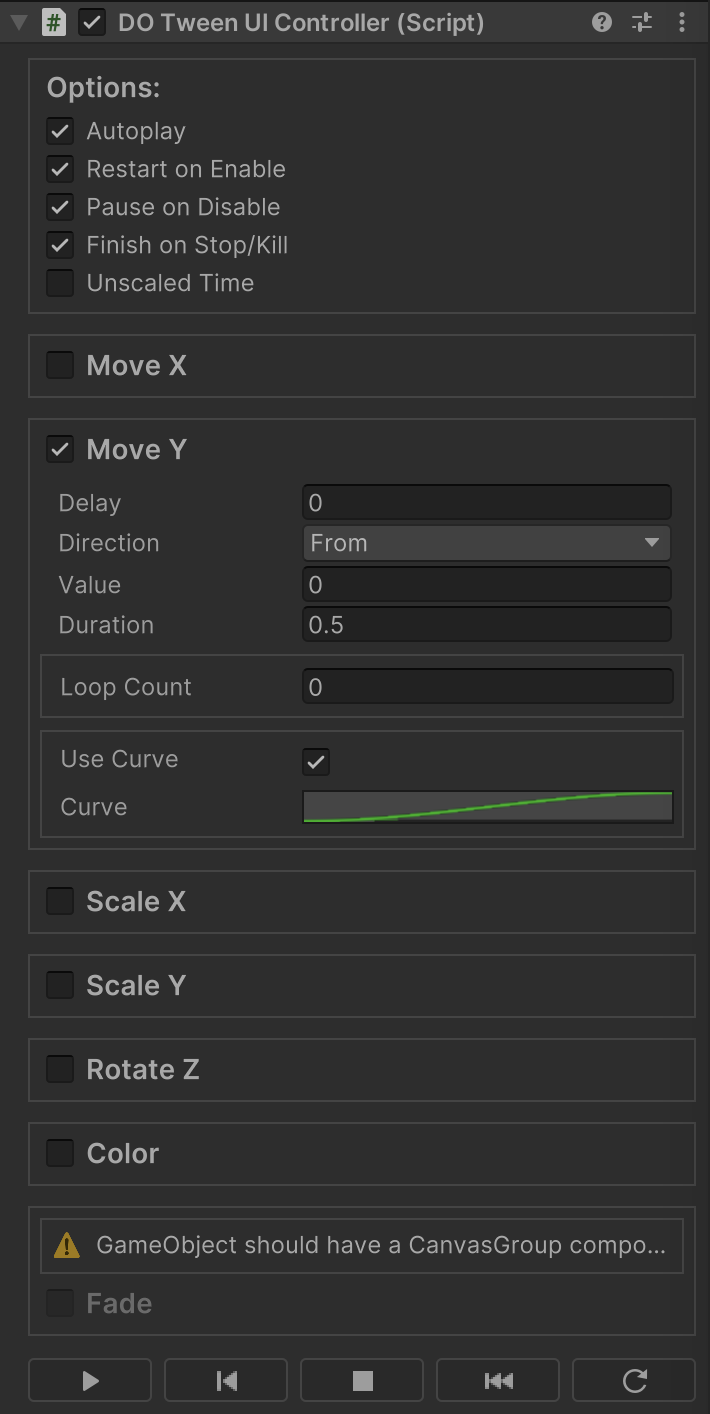
- Seven pre-configured tweens for all essential UI animation operations: Move (X/Y), Scale (X/Y), Rotate (local Z only), Color (for Images and other MaskableGraphic components), and Fade (for the alpha property of CanvasGroup).
- A powerful inspector built with the
UI Toolkit, designed to optimize editor rendering performance. - Lazy initialization of required components to streamline the workflow and enhance efficiency.
- Flexible Unity lifecycle integration, allowing tweens to pause on
OnDisable(), for example, or to be reused and replayed onOnEnable(). - Separate tweens for X and Y axes in move and scale animations, providing finer control.
- Looping support via Sequences, enabling comprehensive control over delay configurations.
- Easing options with support for both custom curves and built-in mathematical easing functions.
- An autoplay feature with optional delays, reducing the need for coding — ideal for animators.
- Full programmatic control is also available for developers who prefer working directly in code.
- The ability to replay animations directly from the editor for testing and fine-tuning without relaunching your game (available only in
Play modedue toDOTweenlimitations).
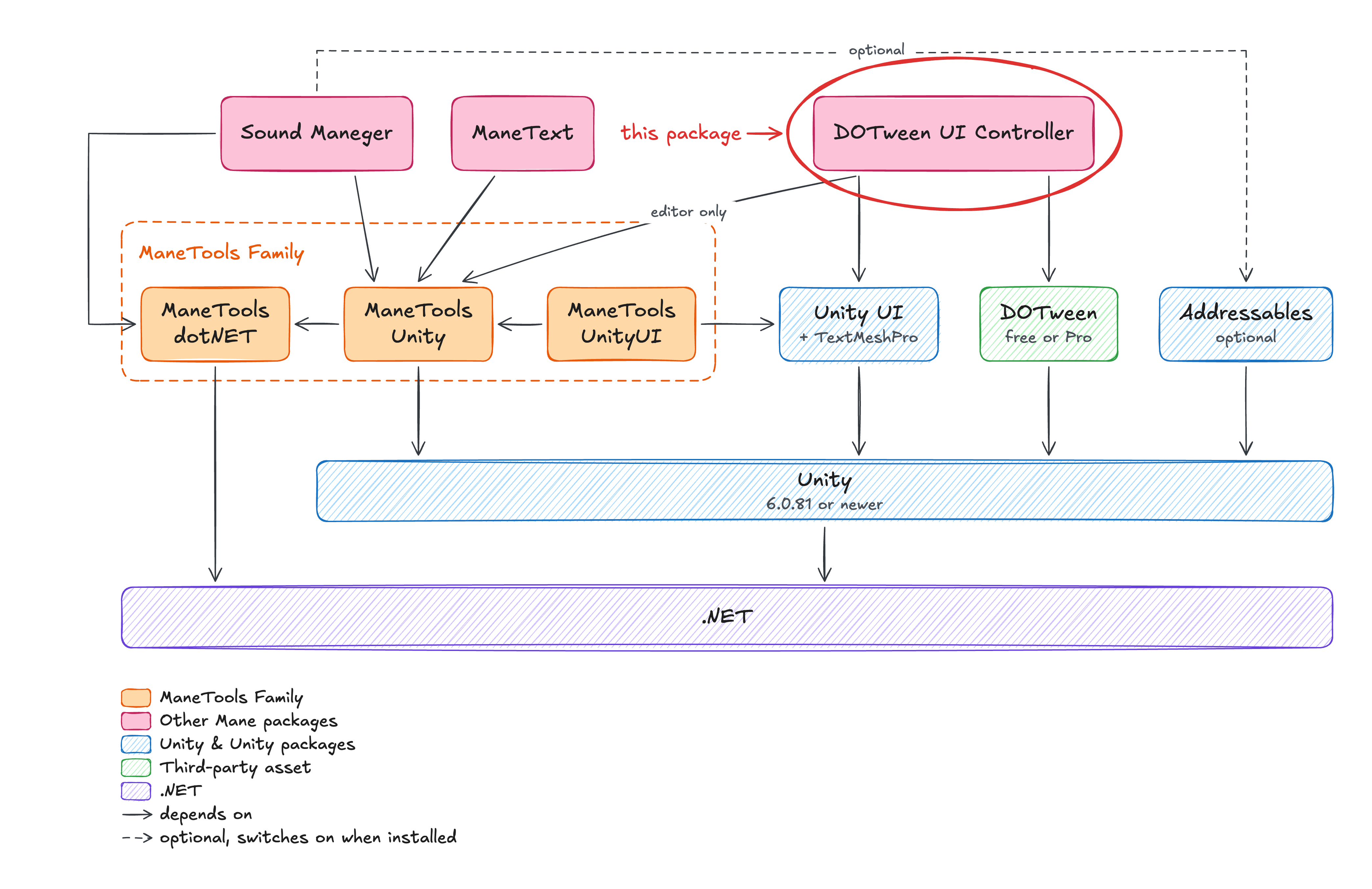
- ManeTools-Unity is required for the editor only, and
OpenUPMinstalls it. - Unity UI package is required too.
- DOTween asset (free or Pro) is required and is installed separately.
I recommend installing this package with the OpenUPM CLI. It keeps dependencies and updates easy to manage. If you cannot use OpenUPM, download the package and place it anywhere in your Unity project.
Setting up OpenUPM for the first time takes a few minutes, but it is worth it. OpenUPM is the usual registry for open-source Unity packages and works with Unity’s Package Manager (dependency resolution and updates included).
On Windows, I recommend Git Bash (MINGW) for CLI work: it is a Unix-like shell, and it is often already installed.
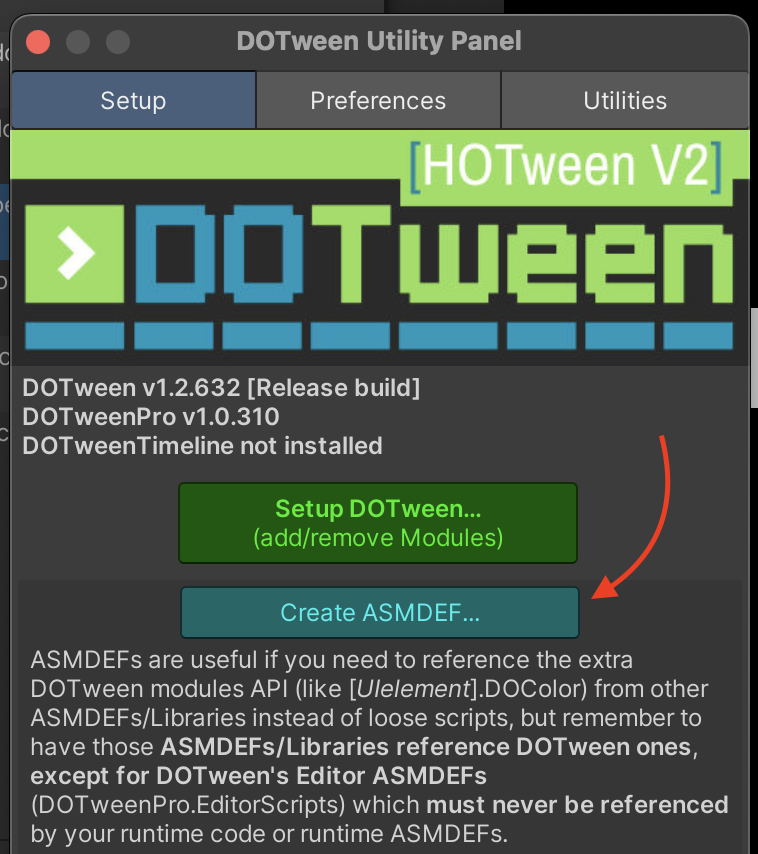
- Prepare your
DOTweenpackage for use by other tools:- Open
Tools -> Demigiant -> DOTween Utility Panel. - Click
Create ASMDEF.... (If you see aRemove ASMDEF...button, do nothing and skip to the next step.) - If you see compilation errors afterward, add the
DOTweenasmdef to the References of your own asmdef for any modules that useDOTween.
- Open
- Install
OpenUPM(skip this if you already have it):- If you do not have
npm, install Node.js (or on macOS:brew install node). - In a terminal, run:
npm install -g openupm-cli. - You can then install packages from the
OpenUPMregistry with no extra Unity setup.
- If you do not have
- Install this package:
- Open a terminal in your Unity project folder:
cd /path/to/your/project. - Run:
openupm add com.manefunction.dotween-ui-controller. - Switch back to Unity and wait for the package to finish importing.
- Open a terminal in your Unity project folder:
Open the Add Component menu on a UI object, go to Mane Tools -> UI -> DOTween UI Controller, set up, and you are good.
Playback can also be driven from code. The lifecycle flags from the inspector (autoplay, pause on disable, finish on stop) still apply.
using Mane.Unity.DOTween;

controller.Play();              // creates tweens if needed, plays forward
controller.PlayBackwards(0.2f); // optional extra delay, used only when tweens are created
controller.Pause();
controller.Stop();              // completes or pauses, depending on Finish On Stop
controller.Restart();
controller.RestartBackwards();
controller.Rewind();
controller.StopAndDispose();    // kills tweens; the next Play rebuilds them
controller.UndoAndDispose();    // rewinds, then kills tweens
With Autoplay on and Restart On Enable off, tweens are one-shot: they are killed when they finish, and the next Play rebuilds them. Looping slots are never killed this way; when they outlive the one-shot ones, they are rewound and rebuilt along with them. In any other setup the tweens stay alive until StopAndDispose, UndoAndDispose or destroy.
Each inspector tween slot can be switched on or off with SetTweenEnabled. Tweens that already exist are not rebuilt, so dispose them first if a running animation should pick up the change:
controller.StopAndDispose();
controller.SetTweenEnabled(DOTweenUIController.TweenType.Fade, false);
controller.Play();
TweenType values: MoveX, MoveY, ScaleX, ScaleY, Rotate, Fade, Color.
This controller is made to work with DOTween, a tweening library created and copyrighted by Daniele Giardini.
DOTween is not created, owned, or maintained by me, and all rights to DOTween belong to its respective author.
For more information about DOTween, including licensing and terms of use, please visit the official website.
The controller itself is not new, but it now depends on the preview ManeTools packages, and the pile of fixes in this version is a great way to invent fresh bugs. Let's give it a little time to surface whatever I missed. Use at your own risk, I suppose.
This repo follows the Conventional Commits specification (though not from the start).


