Self-contained PowerShell maintenance script for Windows 11. Safely cleans 46+ system/app caches, logs, temp files and WinSxS via DISM, flushes DNS, empties Recycle Bin. Ships with dry-run mode, 17-check self-test, exit codes and HTML/JSON reports for multi-machine deployment.
No blind deletes, ever. A path safety guard rejects unsafe paths, dry-run previews exactly what would happen first, and locked files are reported honestly instead of silently skipped.
- Overview
- Screenshots
- What it cleans
- What it does NOT touch
- Prerequisites
- First run
- Desktop shortcut
- Parameters
- Exit codes
- Generated reports
- Multi-machine deployment
- Troubleshooting
Windows-Preflight-Cleaner.ps1 cleans system and application caches, obsolete logs, multi-user temporary files, and Windows components (WinSxS via DISM) on a Windows 11 machine.
On every run, it:
- processes 46 fixed cleanup targets, grouped into categories (plus dynamic targets: detected LibreWolf profiles, other Windows accounts present on the machine);
- flushes the DNS cache and empties the Recycle Bin;
- runs a Windows component cleanup via DISM (
StartComponentCleanup, with an optional/ResetBase); - generates an HTML report (dark dashboard theme), a full JSON export, a CSV history export, and a JSON baseline used to compute a delta against the previous run;
- automatically purges old reports past a configurable retention period.
Designed to run both interactively (workstation) and silently (scheduled task, multi-machine deployment).
v5.3.0 — the script was renamed from
Nettoyage-Windows11-v5_2.ps1toWindows-Preflight-Cleaner.ps1and fully translated to English (console output, HTML report, all 46 target names). It never parses localized command output (robocopy/DISM run in silent binary mode), so it works identically on French- and English-language Windows installs. All number formatting (GB/percentage) now uses an invariant, locale-independent decimal point.
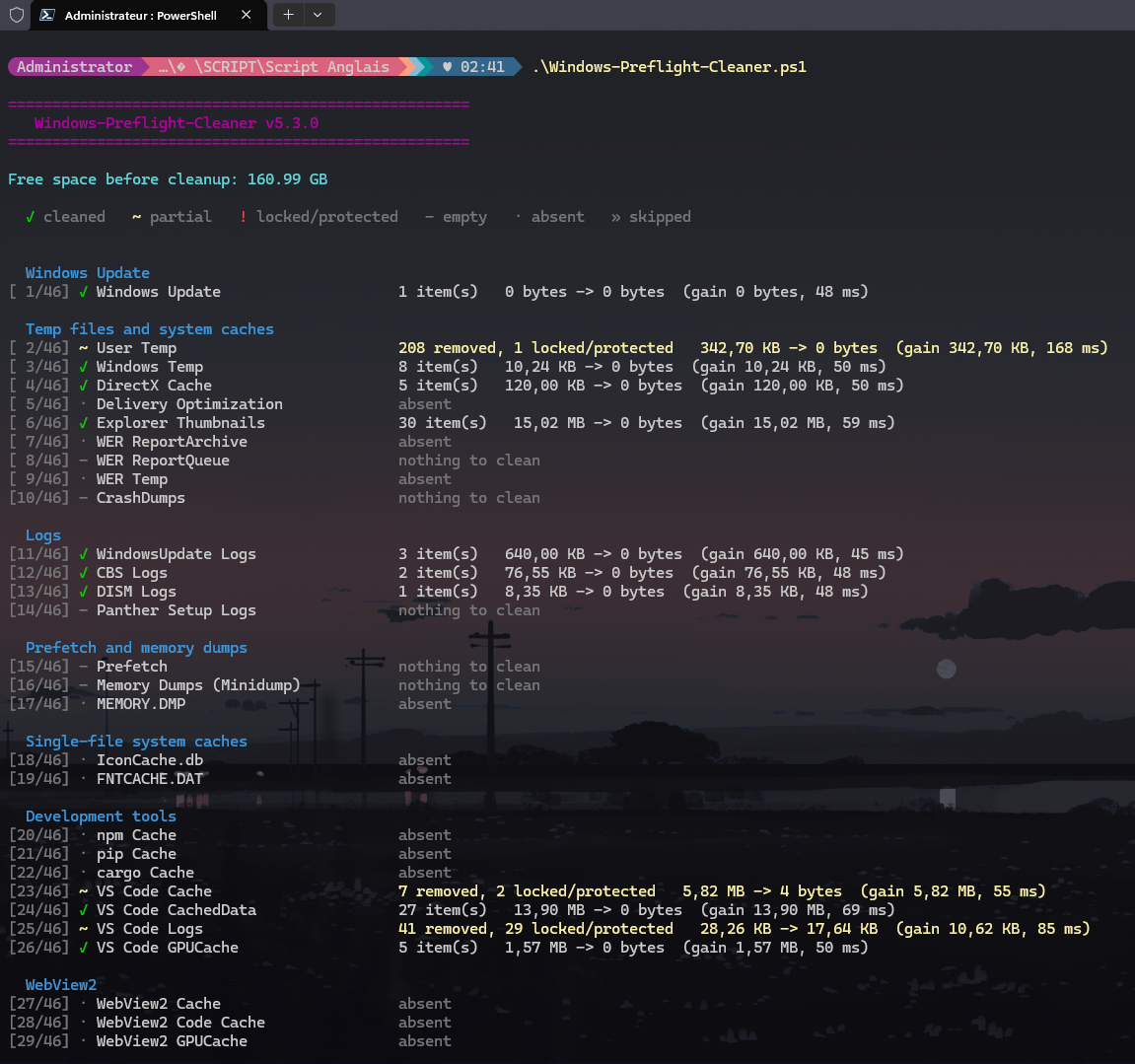
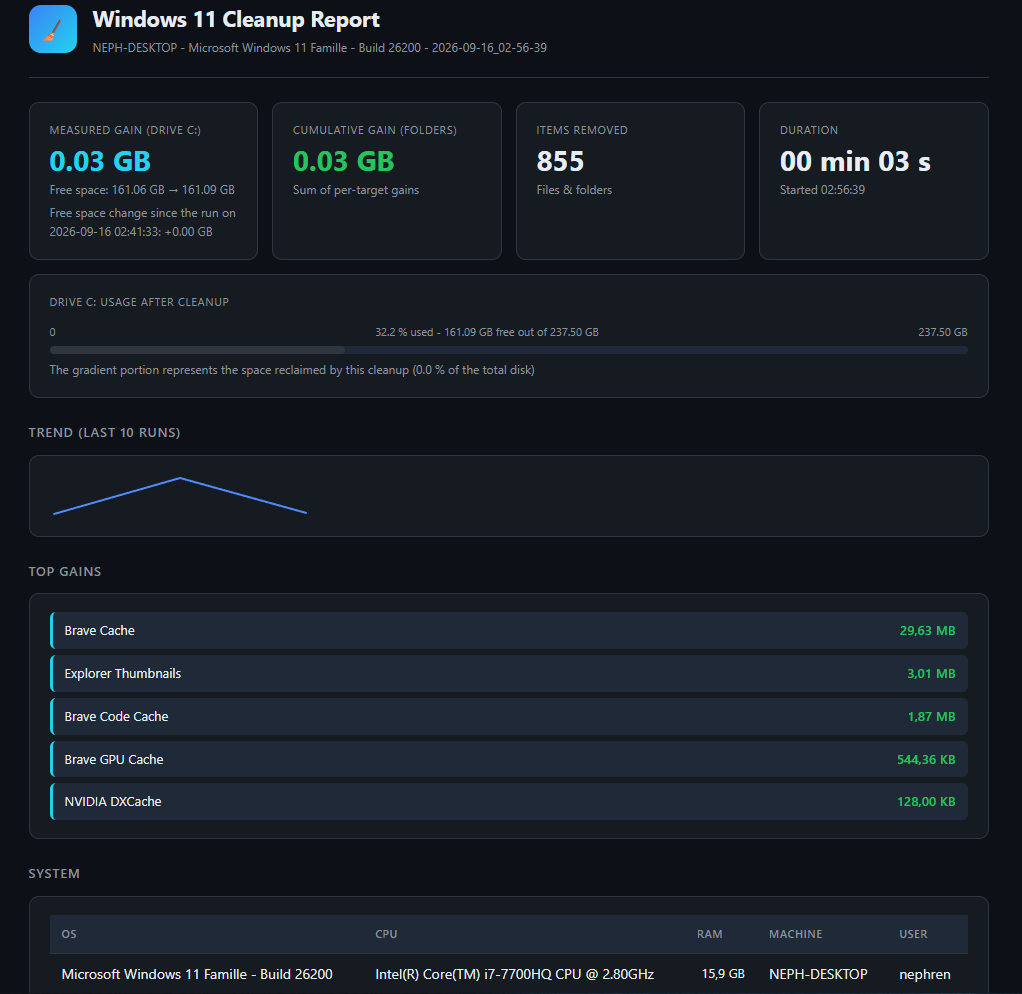
Left: a normal console run. Right: the HTML report's dashboard header (summary tiles, disk usage bar, trend across recent runs).
More screenshots (both console runs, the second run on an already-clean machine, and the full HTML report broken down section by section) are in the screenshots/ folder.
Windows Update
| Target | Path |
|---|---|
| Windows Update | C:\Windows\SoftwareDistribution\Download |
wuauserv is stopped for the duration of the cleanup, then restarted.
Temporary files and system caches
| Target | Path |
|---|---|
| User Temp | %TEMP% |
| Windows Temp | C:\Windows\Temp |
| DirectX Cache | %LOCALAPPDATA%\D3DSCache |
| Delivery Optimization | C:\Windows\SoftwareDistribution\DeliveryOptimization |
| Explorer Thumbnails | %LOCALAPPDATA%\Microsoft\Windows\Explorer |
| WER ReportArchive | C:\ProgramData\Microsoft\Windows\WER\ReportArchive |
| WER ReportQueue | C:\ProgramData\Microsoft\Windows\WER\ReportQueue |
| WER Temp | %LOCALAPPDATA%\Microsoft\Windows\WER\Temp |
| CrashDumps | %LOCALAPPDATA%\CrashDumps |
Logs
| Target | Path |
|---|---|
| WindowsUpdate Logs | C:\Windows\Logs\WindowsUpdate |
| CBS Logs | C:\Windows\Logs\CBS |
| DISM Logs | C:\Windows\Logs\DISM |
| Panther Setup Logs | C:\Windows\Panther |
Prefetch and memory dumps
| Target | Path |
|---|---|
| Prefetch | C:\Windows\Prefetch |
| Memory Dumps (Minidump) | C:\Windows\Minidump |
| MEMORY.DMP | C:\Windows\MEMORY.DMP |
Unit system caches
| Target | Path |
|---|---|
| IconCache.db | %LOCALAPPDATA%\IconCache.db |
| FNTCACHE.DAT | C:\Windows\System32\FNTCACHE.DAT |
FontCache service is stopped for the duration of the cleanup, then restarted.
Developer tools
| Target | Path |
|---|---|
| npm cache | %APPDATA%\npm-cache |
| pip cache | %LOCALAPPDATA%\pip\Cache |
| cargo cache | %USERPROFILE%\.cargo\registry\cache |
| VS Code Cache | %APPDATA%\Code\Cache |
| VS Code CachedData | %APPDATA%\Code\CachedData |
| VS Code Logs | %APPDATA%\Code\logs |
| VS Code GPUCache | %APPDATA%\Code\GPUCache |
WebView2
Chromium component independent from Edge, used by Widgets, Teams, and various apps for embedded web rendering — cache only, regenerates automatically, no risk.
| Target | Path |
|---|---|
| WebView2 Cache | %LOCALAPPDATA%\Microsoft\EdgeWebView\User Data\Default\Cache |
| WebView2 Code Cache | %LOCALAPPDATA%\Microsoft\EdgeWebView\User Data\Default\Code Cache |
| WebView2 GPUCache | %LOCALAPPDATA%\Microsoft\EdgeWebView\User Data\Default\GPUCache |
Recent access history
Start Menu / Taskbar JumpLists — purely cosmetic/privacy-related, automatically rebuilt through normal use.
| Target | Path |
|---|---|
| Automatic JumpLists | %APPDATA%\Microsoft\Windows\Recent\AutomaticDestinations |
| Custom JumpLists | %APPDATA%\Microsoft\Windows\Recent\CustomDestinations |
NVIDIA
| Target | Path |
|---|---|
| NVIDIA DXCache | %LOCALAPPDATA%\NVIDIA\DXCache |
| NVIDIA GLCache | %LOCALAPPDATA%\NVIDIA\GLCache |
| NVIDIA OptixCache | %LOCALAPPDATA%\NVIDIA\OptixCache |
Spotify
| Target | Path |
|---|---|
| Spotify Storage Cache | %LOCALAPPDATA%\Spotify\Storage |
| Spotify Data Cache | %LOCALAPPDATA%\Spotify\Data |
Steam (conditional — only if detected via HKCU:\Software\Valve\Steam)
| Target | Path |
|---|---|
| Steam AppCache | <Steam folder>\appcache |
| Steam HtmlCache | <Steam folder>\htmlcache |
| Steam incomplete downloads | <Steam folder>\steamapps\downloading |
Browsers
| Target | Path |
|---|---|
| Brave Cache | %LOCALAPPDATA%\BraveSoftware\Brave-Browser\User Data\Default\Cache |
| Brave Code Cache | %LOCALAPPDATA%\BraveSoftware\Brave-Browser\User Data\Default\Code Cache |
| Brave GPU Cache | %LOCALAPPDATA%\BraveSoftware\Brave-Browser\User Data\Default\GPUCache |
| LibreWolf Cache [profile] | one Cache/StartupCache pair generated per LibreWolf profile detected automatically on the machine (0, 1, or several) |
| LibreWolf StartupCache [profile] | — |
Multi-user temp profiles (dynamic target)
| Target | Path |
|---|---|
| Temp [account_name] | C:\Users\<account>\AppData\Local\Temp for every Windows account present on the machine other than the current user |
Non-target actions (run on every execution, except in -DryRun mode)
| Action | Detail |
|---|---|
| DNS Cache | ipconfig /flushdns |
| Recycle Bin | full purge (all drives) |
| System Restore Point | optional, -CreateRestorePoint — subject to Windows' 1-checkpoint-per-24h throttle for MODIFY_SETTINGS |
| DISM StartComponentCleanup | cleans up old WinSxS component versions. With -ResetBase (separate option, requires interactive confirmation): permanently removes old component versions — no update rollback possible afterwards |
- No documents, photos, projects, or user files — only caches, logs, and temporary files that are automatically regenerated by Windows or the relevant applications.
- No browser data other than the cache — browsing history, saved passwords, bookmarks, cookies, open sessions: all left untouched.
- The Windows registry is never modified.
- An internal safety guard (
Test-SafeCleanupPath) automatically rejects any target located fewer than 2 levels below a drive root (C:\,C:\Windows,C:\Users...), to protect against a future configuration mistake that could point the cleanup at a system folder that's too broad.
- Windows 11 (also works on Windows 10, not the primary target for testing).
- PowerShell 5.1 (built into Windows) or PowerShell 7+.
- Administrator rights. The script self-elevates if launched from a non-admin session (UAC prompt).
robocopy.exeandDISM.exepresent (built into Windows by default).- The reports folder must be writable:
%USERPROFILE%\Desktop\Maintenance_Reports\Windows-Preflight-Cleaner(automatically created on first run if missing). - If the script is digitally signed (recommended in environments using
-ExecutionPolicy AllSigned/RemoteSigned): the signing certificate must be trusted on the target machine, otherwise PowerShell will refuse to run it.
-
Copy
Windows-Preflight-Cleaner.ps1to the target machine (for example into aC:\Scripts\Maintenancefolder). -
Open a PowerShell terminal — preferably as Administrator. This isn't required (the script self-elevates on its own if you don't), but launching it directly via "Run as administrator" opens the modern Windows Terminal window instead of the classic console (
conhost), with cleaner font rendering and less risk of visual misalignment if you resize the window mid-run (see Troubleshooting).Then go to the folder that contains the script (adjust the path; keep the quotes if it contains spaces):
cd "$HOME\Downloads" -
Unblock the script if you downloaded it from the Internet. Windows flags downloaded files, and PowerShell's execution policy (
RemoteSigned, for example) refuses to run a flagged script. From the script's folder:Unblock-File .\Windows-Preflight-Cleaner.ps1
If PowerShell says instead that running scripts is disabled on this system (the Windows default policy is
Restricted), allow scripts for the current account first (the change applies to this account only, not to the whole machine):Set-ExecutionPolicy -Scope CurrentUser -ExecutionPolicy RemoteSigned
Still blocked? See the step-by-step guide.
-
Check system prerequisites without cleaning anything:
.\Windows-Preflight-Cleaner.ps1 -SelfTest
Runs 17 automated checks (admin rights, presence of robocopy/DISM, required services, internal script functions) and displays PASS/FAIL for each. The script exits without touching any files. Expected exit code:
0(see Exit codes). -
Run a full simulation before the first real cleanup, to preview what would be removed without removing anything:
.\Windows-Preflight-Cleaner.ps1 -DryRun
Calculates potential gains per target, generates an HTML report flagged
[SIMULATION MODE], and performs no deletion, no DISM run, and no DNS/Recycle Bin flush. -
Read the generated HTML report (the script offers to open it automatically, unless
-Silentis used) to confirm the targets and estimated volumes make sense on this particular machine. -
Run the first real cleanup:
.\Windows-Preflight-Cleaner.ps1
Answer the interactive prompts (open report, final ENTER confirmation). The full cleanup typically takes under 10 seconds excluding DISM (
StartComponentCleanupcan take several minutes depending on the state of the WinSxS folder). -
(Optional, for automated deployment) once the behavior has been validated manually, schedule the run via Windows Task Scheduler with
-Silent(see Multi-machine deployment).
For a machine you'll clean by hand every so often, a desktop shortcut is faster than opening a terminal each time.
- Right-click the Desktop → New → Shortcut.
- In "Type the location of the item", paste one of the two commands below (pick the one for your PowerShell version — see the flag table for what each part actually does), then Next → give it a name → Finish.
| PowerShell version | Command |
|---|---|
PowerShell 7+ (pwsh.exe, separate install) |
pwsh.exe -NoProfile -ExecutionPolicy Bypass -File "C:\path\to\Windows-Preflight-Cleaner.ps1" |
Windows PowerShell 5.1 (powershell.exe, built into every Windows install, no setup needed) |
powershell.exe -NoProfile -ExecutionPolicy Bypass -File "C:\path\to\Windows-Preflight-Cleaner.ps1" |
The script itself works identically either way (its -SelfTest checks compatibility with both editions) — use whichever PowerShell you already have. If you're not sure, powershell.exe is always present and needs no extra step.
What the command actually does, flag by flag:
| Flag | What it does |
|---|---|
pwsh.exe / powershell.exe |
The PowerShell engine itself — PowerShell 7+ or the Windows-native 5.1, respectively. |
-NoProfile |
Skips loading your personal PowerShell profile script ($PROFILE) on startup. Faster, and avoids any custom function/alias/module you've set up interfering with the script's own environment. |
-ExecutionPolicy Bypass |
Overrides the execution policy for this one process only — it does not change your system-wide policy. Needed because scripts downloaded from the internet are tagged with the "Mark of the Web" and the common RemoteSigned policy blocks them from running otherwise. |
-File "..." |
Runs this specific .ps1 file with the given path. |
The script re-elevates itself (UAC prompt) on its own when it detects it isn't running as Administrator, so nothing in the shortcut itself needs a "Run as administrator" checkbox to work.
That said, a plain double-click still opens the classic console window (conhost), which has slightly rougher font rendering than the modern Windows Terminal window Explorer's own "Run as administrator" uses — and can occasionally misalign already-printed lines if you resize the window mid-run (cosmetic only, see Troubleshooting). If you'd rather have the nicer rendering from the start, right-click the shortcut and choose "Run as administrator" instead of double-clicking it — functionally identical, just a better-looking window.
| Parameter | Description |
|---|---|
-Silent |
Suppresses interactive prompts (-ResetBase confirmation, final ENTER pause) and does not automatically open the HTML report. Use consistently for scheduled tasks. |
-DryRun |
Simulation mode: calculates potential gains without deleting anything, without running DISM, and without flushing DNS/Recycle Bin. |
-SelfTest |
Checks prerequisites and 10 internal script functions (formatting, safety guard, file lock detection, JSON/CSV round-trip, LibreWolf/Steam detection), then exits without cleaning. 17 checks total. |
-CreateRestorePoint |
Creates a system restore point before the DISM cleanup. Subject to Windows' 1-checkpoint-per-24h throttle for MODIFY_SETTINGS (may fail silently — normal Windows behavior, not a bug). |
-ResetBase |
Adds /ResetBase to the DISM cleanup: permanently removes old WinSxS component versions. No update rollback possible afterwards. Requires interactive confirmation unless -Silent is used. |
-SkipTargets "Name1","Name2" |
List of target names to skip (exact names as shown in the console). A typo that matches no real target triggers an explicit warning at the end of the run. |
-OnlyTargets "Name1","Name2" |
List of target names to process exclusively (all others skipped). Same typo detection as -SkipTargets. |
-RetainReportsDays <number> |
Days HTML/JSON/Transcript reports are retained before automatic purge (default: 60). CSV history and JSON baseline are never purged. Use 0 to disable the purge. |
Examples:
.\Windows-Preflight-Cleaner.ps1 -DryRun
.\Windows-Preflight-Cleaner.ps1 -Silent -SkipTargets "Prefetch","Steam AppCache"
.\Windows-Preflight-Cleaner.ps1 -CreateRestorePoint -ResetBase
.\Windows-Preflight-Cleaner.ps1 -RetainReportsDays 30Useful for integrating the script into multi-machine monitoring without parsing the text transcript.
| Code | Meaning |
|---|---|
0 |
Full run completed, nothing to report |
1 |
Run completed but locked/protected targets were detected (files in use during cleanup), or -SelfTest failed |
2 |
Unhandled fatal error (caught by a global safety net that displays the error message before exiting) |
Check after a run:
echo $LASTEXITCODEOn every run (including -DryRun, and partially -SelfTest), the script writes to:
%USERPROFILE%\Desktop\Maintenance_Reports\Windows-Preflight-Cleaner\
| File | Content |
|---|---|
Windows-Preflight-Cleaner-YYYY-MM-DD_HH-mm-ss.html |
Visual report: summary tiles, disk usage bar, 10-run trend, per-target detail with color-coded status, action log |
Windows-Preflight-Cleaner-YYYY-MM-DD_HH-mm-ss.json |
Full export of all run data |
Transcript-YYYY-MM-DD_HH-mm-ss.log |
Raw PowerShell transcript |
Windows-Preflight-Cleaner-History.csv |
Cumulative history (append-only), never purged |
Windows-Preflight-Cleaner-Baseline.json |
State of the last run, used to compute the delta on the next run, never purged |
HTML/JSON/Transcript reports older than -RetainReportsDays (60 days by default) are purged automatically at the end of the run.
In the HTML report, each target displays a status badge:
| Badge | Meaning |
|---|---|
| ✅ green | Cleaned |
🟡 ~ |
Partially cleaned (partly locked/protected) |
🔴 ! |
Locked or protected (nothing could be removed) |
⬜ - |
Already empty |
🟡 ≈ |
Simulation (-DryRun only) |
The script is self-contained (no external dependencies other than robocopy.exe and DISM.exe, both built into Windows).
-
Distribute the
.ps1file (network copy, GPO, deployment tool, or a clone of this repository) to a local folder on each machine. -
Trust the signing certificate if a strict execution policy is enforced (
-ExecutionPolicy AllSigned/RemoteSigned) — either "Trusted Root Certification Authorities" or "Trusted Publishers", depending on the policy in place. Otherwise PowerShell refuses to run it. -
Run
-SelfTestfirst on each machine to validate prerequisites before any real cleanup. The exit code makes this easy to automate. -
Schedule via Windows Task Scheduler (or your enterprise equivalent), with
-Silentmandatory to avoid getting stuck on an interactive prompt:Field Value Program/script pwsh.exe(orpowershell.exe)Arguments -NoProfile -ExecutionPolicy Bypass -File "C:\Scripts\Maintenance\Windows-Preflight-Cleaner.ps1" -SilentRun with highest privileges Yes (required for administrator rights) -
Monitor via
$LASTEXITCODErather than parsing the transcript: a code of1or2warrants a manual check or an alert in your monitoring tool. -
The CSV history and JSON baseline are local to each machine (stored in the profile of the user running the script) — no data is centralized automatically. A centralized rollup (network share, JSON collection) is left to be implemented separately if a consolidated multi-machine view is needed.
A target shows up red (!) or yellow (~) in the report
Some files were open in an application at the time of cleanup (e.g. a browser running while its cache was being cleaned). Close the relevant application and re-run the script to finish cleaning that target. The end-of-run summary lists the affected targets along with the exact amount of space that could not be recovered.
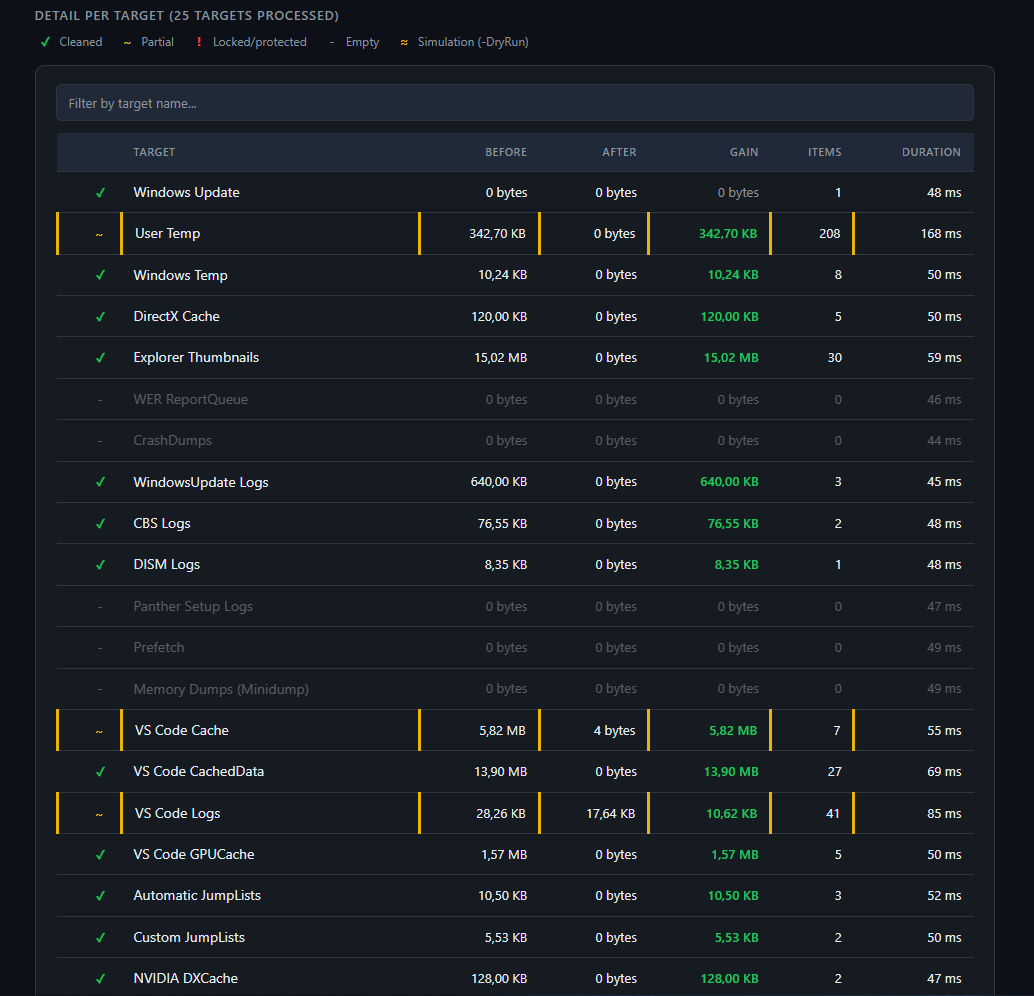
The detail table (above) and the action log both flag partial (~) and locked (!) targets with a left border and an explicit item count, e.g. VS Code Logs : partial cleanup (41 removed, 29 locked).
-OnlyTargets or -SkipTargets seems to do nothing
Double-check the exact target name spelling (see What it cleans, or the names shown in the console during a normal run). The script displays an explicit warning at the end of the run if a provided name matches no real target.
-SelfTest reports a FAIL
Read the label of the failing test: it generally points to a missing system prerequisite (admin rights, a stopped Windows service, robocopy/DISM missing from a restricted environment, a non-writable reports folder). Fix the prerequisite, then re-run -SelfTest.
The system restore point consistently fails
Normal Windows behavior if a checkpoint was already created within the last 24 hours for the MODIFY_SETTINGS type (Windows throttling, not a script bug).
The measured disk gain is close to 0 even though items were deleted
Normal: Windows can reclaim freed space almost instantly for its own purposes (disk cache, temporary system files generated in parallel). Refer instead to the per-target "Gain" column in the HTML report, which precisely measures the space freed for each cleaned folder.
Lines look misaligned after resizing the console window
Resizing the console mid-run (or after completion, before closing it) can visually misalign already-printed lines. This is an inherent conhost/Windows Terminal reflow limitation, not a script bug: each console line is built from several separate colored Write-Host segments, and the terminal host doesn't always redraw them correctly against a new width. Purely cosmetic — the actual data (HTML/JSON/CSV/transcript) is unaffected either way. Avoid resizing the window while the script is running, or use "Run as administrator" instead of a plain double-click, which renders through the more reflow-friendly Windows Terminal (see Desktop shortcut).
Windows-Preflight-Cleaner v5.3.0 — built and hardened through iterative real-machine testing.