
for the age of coding agents
No config, no plugins — want it different? Ask your agent to change it.



curl https:/ltt.is-an.ai|shNote
Requires Git, the .NET 10 SDK and any XTerm-style terminal (iTerm2, kitty, WezTerm, GNOME Terminal…). On Windows everything works except the mouse.
Agents write most of the code now. What you do all day changed with it: read what the agent produced, jump around the project, search for a symbol, fix a line or two, hand the keyboard back. An IDE — project systems, indexers, language servers, slow startup — is heavy machinery for that loop.
ltt is the opposite. It starts instantly in the terminal you already keep open next to your agent, shows folders on the left and files on the right, searches the whole tree fuzzily as you type, and gets out of the way. No configuration, no plugins, no project files, zero dependencies: plain C# on .NET 10.
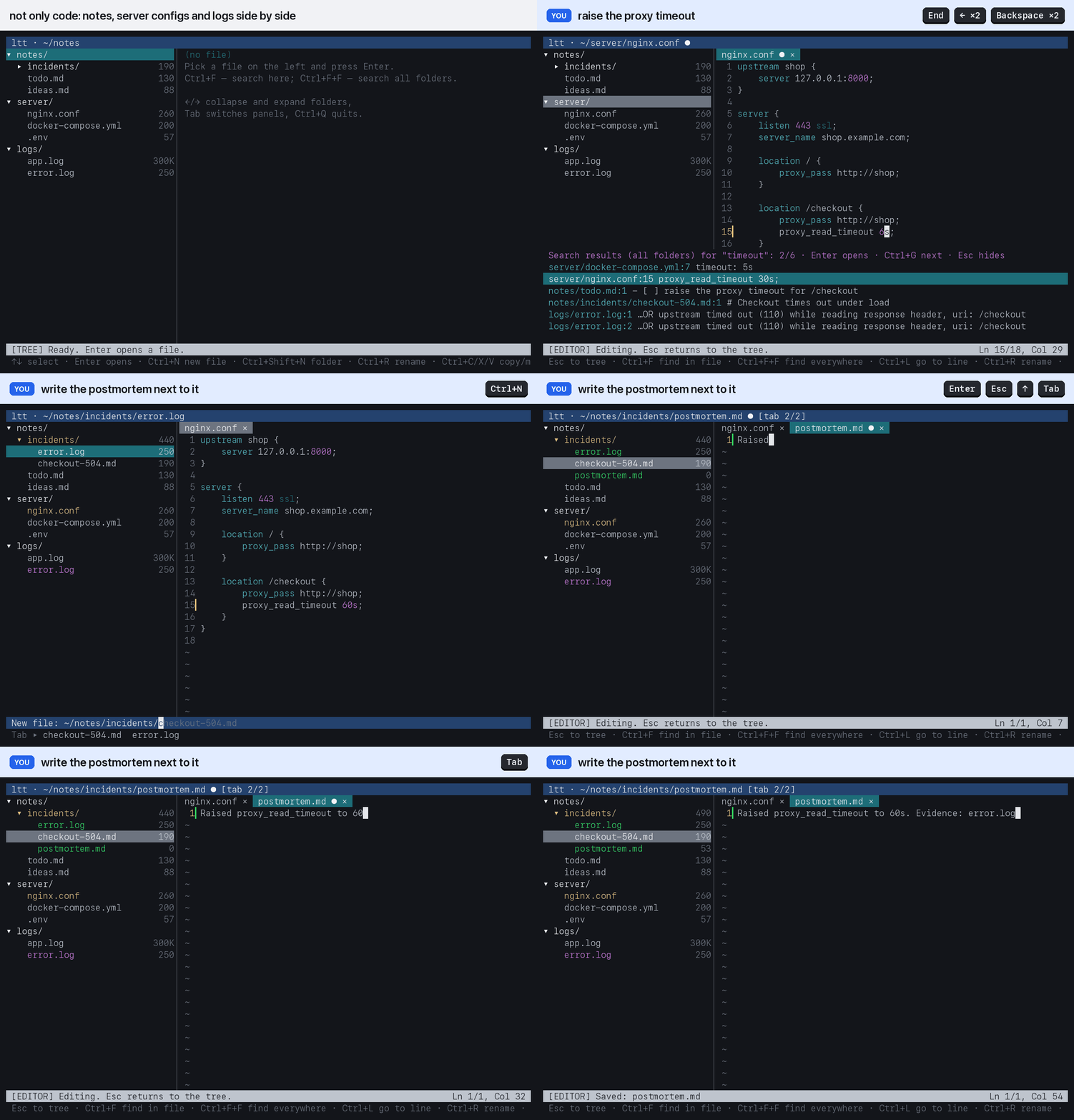
It is a general tool, not only for codebases: notes, docs, configs, logs — any folder of text works the same way. Open several folders side by side, search them all at once, copy and move files between them; in a git repository ignored files are dimmed and left out of search.
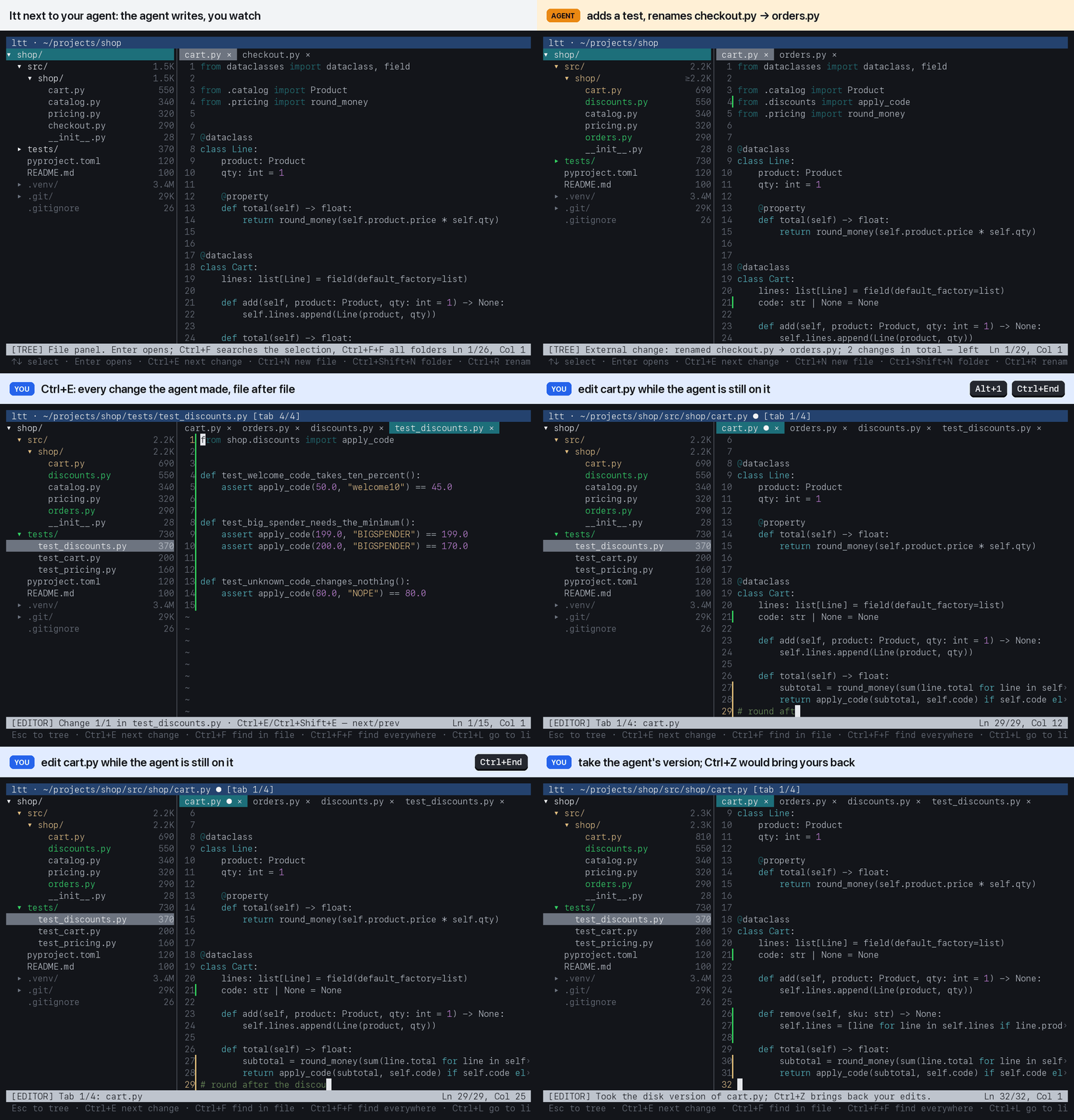
👀 Watch the agent — new files turn green, changed ones yellow, changed lines get marked, Ctrl+E walks through them all; your unsaved edits are never overwritten without a question.
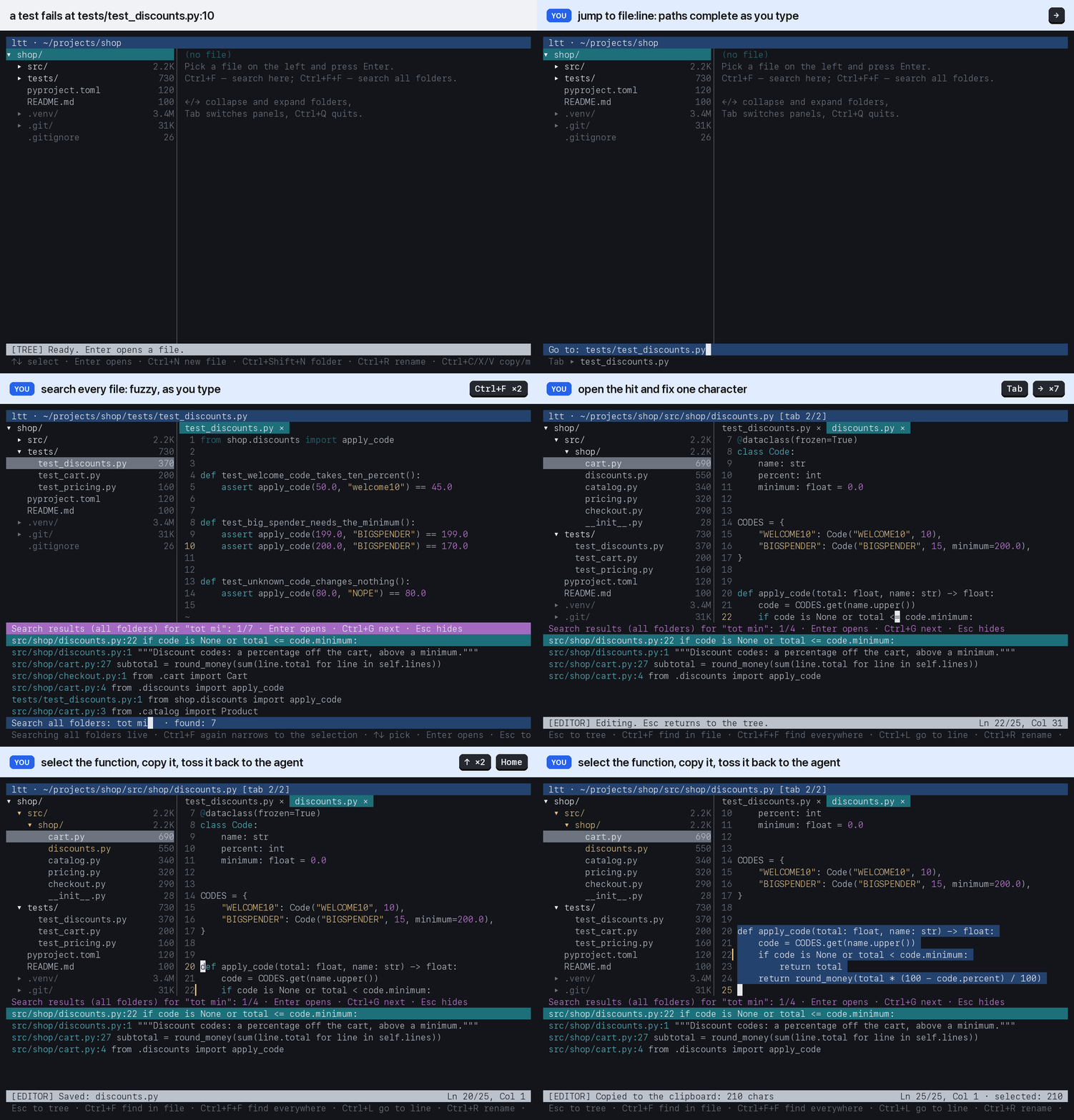
✏️ Find and fix — jump to file:line, search every file as you type, fix the line, copy the code back to the agent.
📂 Any folder — notes, configs and logs side by side: one search across them, files copied between them.
ltt is not scriptable, on purpose: no configuration language, no plugin
API. Customising an editor through scripts in its own little language —
Vimscript, Emacs Lisp — is tedious, fragile and limited to whatever the
editor chose to expose; it is a habit from before language models. Now
it is quicker in every sense to fork ltt and ask Claude, or any coding
agent, to rework whatever gets in your way. The whole editor is a small
C# codebase with no dependencies, AGENTS.md shows the agent
around, and about 2,000 tests in the tests branch — most of them drive
ltt in a real terminal, the way you would — tell it whether anything broke.
ltt is meant as a minimal base to reshape that way, not a platform to
configure.
You: Ctrl+D should duplicate the current line, or the selected lines.
Claude Code: done in 20 lines across three files, and in a question Ctrl+D can no longer answer "D — don't save"; 19 new tests, all tests pass. The change · its tests
There is no installer and there are no release binaries, on purpose: ltt is
meant to stay malleable — source in a clone of your own, reshaped for the way
you work, or even for a single task. For the same reason the code is kept as
small as it can be: all of it should fit in the context of even a small model.
The quick start above only fetches the source and runs it; to make ltt yours,
clone or fork it, ask your agent for what you need, and run it from there:
dotnet run --project path/to/ltt -c Release.
With AI, most of a rich interface has nothing left to do. Menus, toolbars, wizards and settings panels exist to make operations findable; now you say what you want — by voice or in text — and an agent finds the operation. The agent works in text anyway: files, commands, diffs, logs. Text is the one medium you both read and write, and it can be searched, diffed, versioned and sent over SSH.
What stays is looking. Your part of the work moves from doing to checking, and checking needs a fast, honest view of what the agent wrote, plus a precise tool for the line it got wrong: words are good for asking for a change and poor for fixing a single character. Voice and text to say it, a terminal to look and touch — that is the whole interface. ltt is the terminal part.
- ⚡ Instant on — nothing is indexed or scanned at startup; the tree loads lazily, one folder at a time, only when you expand it.
- 🪶 Cheap frames — only the screen cells that changed are sent to the terminal, and only the visible part of a line is highlighted. Smoke-tested on a 25 MB / 1M-line file: opening, jumping to the end, typing and undo stay smooth; the undo history keeps only the lines you touched.
- 🔎 Search keeps up with typing — fuzzy content search runs live from 2 characters and streams files instead of loading them whole (~35 ms across this repo).
- 🤖 Made for agent workflows — when your agent (or git, or a build) creates, renames or deletes files, the tree updates by itself. An open tab follows its file: a clean tab reloads when the agent rewrites it, a tab with your unsaved edits is marked ⚠ and saving it asks before overwriting the agent's version. What changed since the last commit stands out: new files green, changed ones yellow, changed lines marked next to the line numbers (outside git: what changed since ltt started).
ltt has no syntax highlighter of its own: the colours come from vim. A highlighter worth having knows hundreds of languages, each with its own strings, comments, heredocs and regular expressions, and takes years of fixes to get their corners right. vim has one — over 700 languages and file formats, refined for decades — and vim is already there on macOS and on many Linux systems, one package away elsewhere. A second highlighter inside ltt would be redundant.
So ltt keeps one vim running in the background — no vimrc, no plugins,
no modelines — hands it a copy of each open file and asks only about the
lines on screen; your own ~/.vim/syntax files work too. ltt never
waits for vim, and without it the text is simply plain.
Tip
Esc always means "back": editor → tree, close a prompt, hide the search panel, cancel a confirmation.
| Key | Does |
|---|---|
| Ctrl+F · Ctrl+F+F | search selected/open file or folder · search all folders (press Ctrl+F twice) |
| Ctrl+L | go to a line, or to file:line as compilers and agents print it |
| Ctrl+R | rename the selected file/folder or the open file |
| Ctrl+G / Ctrl+Shift+G | next / previous search hit |
| Ctrl+E / Ctrl+Shift+E | next / previous change: through the open file, then on into the next changed one; in the tree, the next changed file |
| Ctrl+S · Ctrl+Z · Ctrl+Y / Ctrl+Shift+Z | save · undo · redo |
| Ctrl+O · Ctrl+N · Ctrl+Shift+N | add root · new file · new folder |
| Ctrl+W · Alt+1..9 · Ctrl+PgUp / Ctrl+PgDn | close tab · jump to tab · cycle tabs |
| Ctrl+Q | quit |
| Key | Does |
|---|---|
| Enter / → · ← | open file (on a folder: expand) · collapse |
| Tab | to the editor (Esc returns) |
| Ctrl+C / Ctrl+X · Ctrl+V | copy / cut a file or folder · paste it into the selected folder, in any root |
| Ctrl+R · Ctrl+Delete · Delete | rename · delete from disk · remove root from panel |
| Key | Does |
|---|---|
| Shift+arrows | extend selection (mouse drag and double-click work too) |
| Option+←→ / Ctrl+←→ · Option+↑↓ | jump by words · by paragraphs |
| Option+Backspace / Ctrl+Backspace | delete the word before the cursor |
| Ctrl+Home / Ctrl+End · PgUp / PgDn | document start/end · page |
| Ctrl+A · Ctrl+C / Ctrl+X / Ctrl+V | select all · copy / cut / paste via the system clipboard |
| Key | Does |
|---|---|
| Tab · ↑ / ↓ · → | cycle path completions · accept ghost suggestion |
| Ctrl+U | clear the whole input line |
| ↑ / ↓ · PgUp / PgDn · Enter | move in live results · open the hit |
| S / D / R / Esc | in confirmations: save (overwrite) / don't save (delete) / take the disk version / cancel |
- Ctrl+Shift shortcuts need a terminal with the kitty keyboard
protocol (kitty, WezTerm, Ghostty, foot); elsewhere a trailing
/in the new-file prompt makes a folder and Ctrl+Y redoes. - Shortcuts follow the letters of your keyboard layout (AZERTY, QWERTZ…); with a Cyrillic or other non-Latin layout they use the physical keys. On a Mac, Cmd works like Ctrl in kitty-protocol terminals.
- In the editor Ctrl+V pastes the system clipboard; your terminal's own paste works too and is the only route over SSH. Ctrl+C never quits (that's Ctrl+Q).
- Pasting in the tree never overwrites: a taken name gets a number
(
notes 2.txt). Ctrl+C on a tree entry also copies its path. - Files are saved exactly as they were read — encoding (UTF-8, UTF-16, UTF-32, Latin-1), BOM, line endings, the final newline and tabs stay as they were — in one atomic rename that keeps the file's permissions and owner.
- The tree shows sizes, largest first; folders are counted in the
background (
≥while still counting). - In a git repository search covers the files git knows (tracked and
untracked, minus
.gitignore); elsewhere it skips.git,node_modulesand the like. Unsaved edits in open tabs are searched too. - If ltt crashes, is killed or loses its terminal, unsaved tabs go to a
recovery folder (
~/Library/Application Support/ltt/recoveryon macOS,~/.local/share/ltt/recoveryon Linux) and reopen on the next start.