



%20%7C%20Windows%20(alpha)-lightgrey.svg)

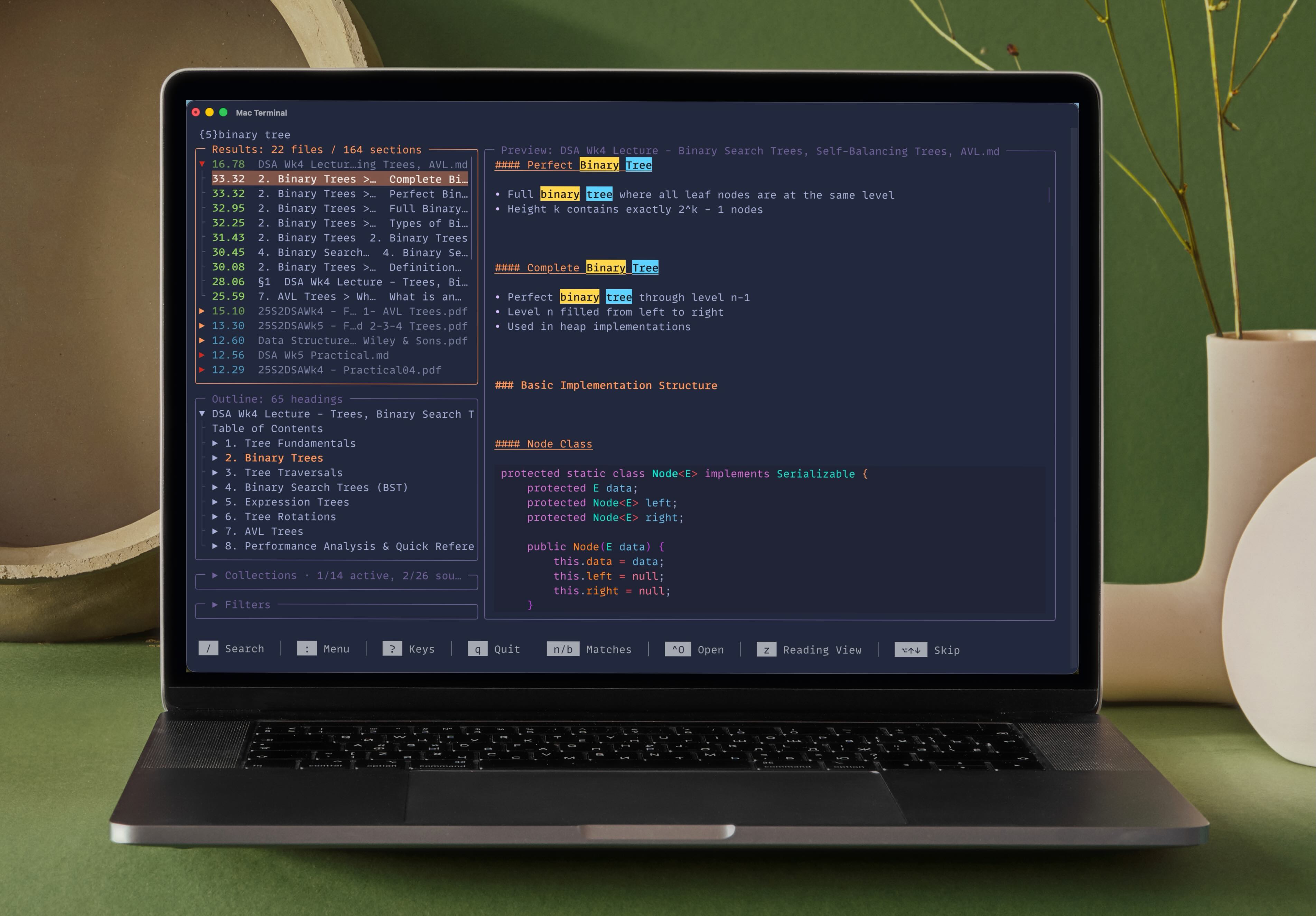
Fast, free, keyboard-driven document search for macOS. 100% local and private. Built for Markdown, and indexes PDF, DOCX, PPTX, EPUB and 35 more file types, with strong BM25 ranking, in-file navigation, an "Open with…" launcher, and a lazygit-style TUI.
macOS is stable; Linux and Windows are alpha: CI-tested, never used in anger. Open an issue when you hit something. See Platform support.
- macOS 15+ on Apple silicon: supported.
- Linux or Windows: alpha. See Platform support.
- Homebrew and uv bring Python 3.13 with them; pipx needs it installed.
- A modern terminal (see Terminal compatibility).
Pick one of the options below. They install the same tool, so you only need one.
brew install ben-dev-au/tap/fndHomebrew is the standard macOS package manager. Install it once, then run the line above. It installs a prebuilt binary.
uv tool install fndr # or: pipx install fndrTo run it once without installing: uvx --from fndr fnd.
Either way, launch the app by typing fnd.
On PyPI the package is named
fndr(fndwas taken); the command staysfnd.
Releases carry build provenance; see SECURITY.md to verify a download.
- Markdown first, 40 file types: Markdown and plain text, PDF, DOCX, PPTX, OpenDocument, EPUB, HTML, 22 code languages, data files (JSON, YAML, CSV, …), Jupyter notebooks.
- Named collections: group sources and search them individually or
together; each source has its own Index filters and honours
.gitignore/.fndignore. - Strong ranking: BM25 with regime-aware fusion (strong-signal / fusion / cascade) for stable results across corpora of different sizes.
- Auto-fuzzy matching: a word no file holds is respelt, and the line under
the query says so;
Ctrl+Tsearches as typed. - Expressive query language: phrases, boolean, proximity, fuzzy, field qualifiers, wildcards, regex, date filters, and Markdown frontmatter filters (see Search how-to).
- lazygit-style TUI: live search as you type, syntax-highlighted preview, an Outline pane, match navigation, Reading View, and in-file navigation that jumps to the matching PDF page, PPTX slide, or Markdown heading.
- "Open with…" launcher: open a hit in Preview, Skim, Obsidian, VS Code, PDF Expert, or your own configured app, with page/line/heading deep-links where the app supports them (see Open with…).
- Obsidian integration: vault auto-detection, frontmatter filters, and line-precise jumps via the Advanced URI plugin.
- Semantic search (opt-in): a local embedding model blended into the BM25 ranking (see Semantic search).
- PDF texturising (opt-in): structured PDF extraction (headings, lists, tables, bold/italic) with a shared PDF Texture Cache (see PDF texturising).
- 100% local and private: no account, no cloud, no telemetry. The network is used only to download an opt-in extra.
Read the table as what is implemented, not what is verified:
| Capability | macOS | Linux (alpha) | Windows (alpha) |
|---|---|---|---|
| Maturity | tested in use | CI only | CI only |
| Search · indexing · TUI · preview | ✓ | ✓ | ✓ |
| Open in app / Open with… | ✓ | ✓ | ✓ |
Reveal in file manager (R) |
Finder | file-manager --select → folder |
Explorer /select |
| PDF page-jump on Open | Skim, Preview | Zathura, Okular | SumatraPDF |
| PDF texturising (opt-in) | ✓ | ✓ | ✓ |
| Created-date filter | ✓ (birth time) | best-effort (statx) | ✓ (creation time) |
| Cloud-only file handling | iCloud Drive | not detectable | OneDrive & co. |
| Finder tag filtering | ✓ | no OS equivalent | no OS equivalent |
YAML tags: filtering |
✓ | ✓ | ✓ |
- Where an OS has no equivalent, the feature is skipped, not an error.
- "Open with…" lists only the apps you have installed.
- Linux and Windows app handlers follow each app's documentation and are
unconfirmed; to add a viewer, see
docs/apps.md. - Reports from Linux and Windows are valuable, "it worked fine" included.
- Run
fnd. With no collections yet, it opens straight into Add collection. - Fill in the Name and the source's Path (
~/…is fine). Optionally set its Index filters (file types, excluded paths and folders, tags, size, dates) and Frontmatter rule. - Ctrl+S saves and opens the collection's page; Update index builds it.
Escback to the search and start typing.
- Later collections:
Tabout of the query bar, press:, then Collections → Add collection. - Add more folders: open the collection → Sources → Add source.
- Saving never indexes:
↻marks a collection that is behind; pressuon it.
fnd collection add notes --source ~/Notes --include "**/*.md" --exclude-dir archive
fnd collection reindex notesfnd binary tree -c notes # open the TUI on that query, scoped to notes
fnd binary tree # the same, across your selected collections- Add the vault as a collection, as above (Path: the vault folder).
- Open notes in Obsidian: Settings (
:, outside the query bar) → Collections → the vault → Sources → the source → App: Obsidian (the Obsidian vault name fills in) → Ctrl+S. - Install Obsidian's Advanced URI plugin to land on the matching line;
without it,
⌥Oopens the note at the matching heading.
- Frontmatter: filter a query with
[Status == 'draft'], or a source with a Frontmatter rule (--filteron the CLI). See Markdown frontmatter filter. tags:work with the Filters pane and--tag; tag a noteno_indexto keep it out..obsidian/is hidden, so never indexed.
Run fnd with no arguments:
- Query bar (top): results update as you type; same query language as the CLI.
- Results (left): hits grouped by file, with the Outline, Collections and Filters panes beneath.
- Preview (right): the matching passage, search terms highlighted.
| Key | What it does |
|---|---|
↑ / ↓ |
Move the cursor up/down through results (vim's k / j also work). |
⌥↑ / ⌥↓ |
Skip: hold Option (Alt) to move through results without loading each preview. The preview loads again on a plain ↑/↓ or Enter. |
Enter |
Load the highlighted result into the preview (handy right after an Option-skip). |
→ |
Expand the focused file to its matching sections; press again to drill into the first. |
← |
Collapse the focused node, or back out to its parent (lazygit-style). |
Ctrl→ / ⌥→ |
Expand all: expand the focused node and its whole subtree (results, collections and filters trees). |
Ctrl← / ⌥← |
Collapse children: fold away every descendant, keeping the node itself open. |
Tab |
Move focus to the next pane. |
/ |
Jump back to the query bar to refine your search. |
r p c f |
Focus Results, Preview, Collections, Filters. |
o |
Focus the Outline. Enter on a heading (or → on one with nothing to expand) moves the preview there. |
n / b |
Next / previous match in the preview. |
↑ / ↓ |
When the preview pane is focused, scroll the preview. |
z |
Reading View: hide the sidebar so the preview fills the width, for clean text selection. |
- Lists the headings of the previewed document: document headings, slide titles, a PDF's bookmarks (or, without any, its preview headings).
- Follows you as you move between results and scroll.
- Code, data and plain-text files have no outline.
Option-skip on Apple Terminal: for
⌥↑/⌥↓to reach fnd, enable Settings → Profiles → Keys → Left Option key → Esc+. iTerm2 and most modern terminals work without any change.
⌥Oneeds Option to send Meta (Alt). Without that terminal setting, Option+O types a character instead (øon a US layout).Ctrl+Oworks in every terminal on every keyboard layout, so use it wherever you need Option for typing: Danish, Norwegian and many other layouts put letters and symbols there.Expand/collapse all: on macOS use
⌥←/⌥→, since Mission Control usually takes⌃←/⌃→. On Windows and Linux,Ctrl+arrow works.
| Key | What it does |
|---|---|
⌥O / Ctrl+O |
Open the file at the matching page / slide / line / heading (Alt+O on Windows and Linux). |
O |
Open with…: a picker of every app that handles this file type. Use ↑↓ then Enter, or press the letter shown next to an app; Esc cancels. |
R |
Reveal: show the file in your file manager (Finder on macOS, File Explorer on Windows) with it selected, without opening it. Also on the last row of the O picker. |
: |
Open the Settings & Commands menu: every setting and action in one searchable, full-screen list. Not from the query bar, where it types a :. |
? |
Keybindings cheat sheet (press again to dismiss). |
Ctrl+F |
Toggle auto-fuzzy matching (persists to your config). |
Shift+Esc / Ctrl+T |
Search the current query as typed, respelling no word; press again to respell. Shift+Esc needs the Kitty keyboard protocol (Kitty, Ghostty); Ctrl+T works everywhere. |
h |
Toggle search-term highlighting in the preview. |
w |
Warm the focused file completely, so scrolling anywhere in it is instant. Asks first on a large file; press again on that file to stop. |
X |
Clear every active filter (file type, dates, tags); the collection scope stays. |
Ctrl+Enter / ⌥Enter |
In Collections or Filters, toggle a row without re-running the query, to change several at once. |
u |
In Collections, update the highlighted collection's index (↻ marks one that needs it). |
Ctrl+/ |
In Collections or Filters, search the pane: type to show only matching rows, Esc clears. ↑ from the top row gets there too. |
Ctrl+Y |
Copy the query and active filters as a runnable fnd command. |
q / Ctrl+C |
Quit. Esc backs out of any overlay or nested screen. |
- Settings menu (
:):↑↓orj/kto move,Enterto open / edit / toggle,/to filter rows,Escor←to step back. - Rebind keys in
keybindings.toml: Settings → External → Keybindings file.
- macOS: iTerm2, Ghostty, Kitty or WezTerm. Terminal.app works, but how it draws borders depends on the font (Menlo is a reasonable default).
- Linux: Kitty, WezTerm, Alacritty, GNOME Terminal or Konsole (expected to work, not yet confirmed).
- Windows: Windows Terminal (built into Windows 11) or WezTerm. The old console draws borders and colours poorly.
- If the TUI looks wrong, try another terminal first.
| Command | What it does |
|---|---|
fnd <query> -c <collection> |
The usual way in: launch the TUI with <query> pre-filled, scoped to a collection. |
fnd <query> |
Launch the TUI with <query> pre-filled, across the remembered collections. |
fnd / fnd -c <collection> |
Launch the TUI with an empty query (-c all for every collection). |
fnd tui [query] |
Explicitly launch the TUI; use it when the query starts with a subcommand name (fnd tui version). Takes the filters below. |
fnd search "<query>" |
Terminal search. Flags: --limit, -c/--collection, --meta, --as-typed, --explain N, plus the filters below. |
fnd index <root> |
Ad-hoc index one folder into the default collection (--no-embed skips semantic embedding). |
fnd collection list |
List configured collections and their sources. |
fnd collection add <name> |
Add (or extend) a collection in the config TOML. |
fnd collection reindex <name> |
Index or re-index a configured collection (--rebuild to start fresh). |
fnd config show |
Print the effective merged config as JSON. |
fnd config path |
Print the path to the config TOML. |
fnd config edit |
Open the config TOML in $EDITOR (creates a template if missing). |
fnd config validate |
Validate the config TOML. |
fnd extras list |
List optional extras and their installed status. |
fnd extras status |
Show installed extras with disk usage. |
fnd extras install <name> |
Install an extra after a disk-impact disclosure prompt. |
fnd extras uninstall <name> |
Remove an extra (indexed chunks remain). |
fnd cache status / info / prune / prune-orphans / clear |
Manage the PDF Texture Cache. |
fnd version |
Print the fnd version. |
fnd search and fnd tui take the same filters as the TUI's Filters pane:
| Flag | Meaning |
|---|---|
--tag <name> |
Only files carrying this tag. Repeatable. |
--not-tag <name> |
Exclude files carrying this tag. Repeatable. |
--tag-match all|any |
Combine multiple --tags. Default all. |
--created <window> |
Created within today/yesterday/week/month/year. |
--modified <window> |
Modified within the same windows. |
--kind <kind> |
A file type or category (md, pdf, code, ebooks). Repeatable. |
fnd search "risotto" --tag recipe --not-tag draft --created month- Tags come from YAML frontmatter (
tags:, Obsidian-style) and, on macOS, Finder tags. --tag projectalso matchesproject/alpha; case and a leading#don't matter.defaults.tag_sourcespicks which tags are read; no reindex needed.- Created dates are the filesystem's creation time: macOS birth time, Windows creation time, statx-capable Linux filesystems (e.g. ext4). A file without one matches only the unfiltered window.
⌥OorCtrl+Oopens a hit in its resolved app at the matching page, slide, line or heading, where the app allows.Oopens the Open with… picker, listing only installed apps: Skim, Preview, PDF Expert (macOS), Zathura, Okular (Linux), SumatraPDF (Windows), plus Obsidian, VS Code, System Default.- Set a default app per file type with
[app_defaults], or per source. - Add your own app:
docs/apps.md.
- A collection is a named group of folders (sources) you search together; each source's Index filters decide which of its files get indexed.
- fnd searches all collections by default; tick some in the Collections pane to narrow it, and the choice is remembered.
fnd -c <name>narrows one launch;-c allwidens it, leaving the remembered choice alone.
Searching several collections marks each result with its collection:
- Extension in the collection's colour; a shape too, past five collections.
- Sidebar is the key; the preview's bottom border names it.
- A file in more than one: unmarked.
Globs match the path relative to the source root. *, ? and [abc] stop at a
/; a whole ** segment spans zero or more folders, so **/*.md catches both
a.md and notes/deep/a.md. The ~~ operator uses the same language.
Manage collections from the TUI, the command line or the config file; all three edit the same file.
Tab out of the query bar, press : to open Settings, move to Collections, then:
-
Add a collection: choose Add collection and fill in:
- Collection: its Name.
- Source, its first folder: a Path (
~/…is fine), Follow symlinks, then what gets indexed from it: Index filters (file types, excluded paths, tags, size, dates), the Frontmatter rule, and Restrict to these paths.
Press Ctrl+S to save; you land on the new collection's page, where Update index builds it.
-
Add a source to an existing collection: open the collection, then Sources → Add source, and set the path, its Index filters, an optional per-source app, and (for Obsidian) the vault name. Ctrl+S saves and returns; Ctrl+A saves and adds another.
-
How editing works:
- A single setting (a toggle, a picker, a value) applies the moment it changes.
- A form (a source, Add collection, Index filters) saves with Ctrl+S;
Escgoes back, and asks first if there are unsaved changes. - A screen opened from a form (a source's filters, a picker) carries its
changes back to the form on
Esc. - Saving never indexes. A collection whose index no longer matches its
config shows
↻in the Collections pane; pressuthere, or on its Settings page, to update it.
# One source per command; run it again to add another folder to the collection
fnd collection add reading --source ~/Documents/Books
fnd collection add reading --source ~/Documents/Papers

# Index filters: globs, excluded folders, a frontmatter rule
fnd collection add notes --source ~/Notes --include "**/*.md" --exclude "drafts/**"
fnd collection add work --source ~/Work --exclude-dir archive --exclude-dir projects/old
fnd collection add vault --source ~/Vault --filter "NOT ('private' in tags)"

fnd collection list             # show what's configured
fnd collection reindex reading # build/update the index (--rebuild to start fresh)Run fnd config edit to open the TOML in $EDITOR, then fnd config validate
to check it.
fnd generates the file: every key is listed with what it does, and a commented-out line is its default, so uncommenting one changes it. Hand-edit freely; your values are kept, but layout and comments are regenerated whenever fnd writes the file.
Put anything you want kept between the notes markers:
# >>> notes: kept verbatim when fnd rewrites this file
# Vault re-indexed 2026-09-01.
# parked: exclude_tags = ["no_index", "draft"]
# <<< notes
config_version at the top records the format. fnd upgrades an older file on
first launch and leaves a config.toml.bak-<timestamp> beside it. A file from a
newer fnd is refused rather than silently misread.
Index-time filters decide what gets indexed; the Filters pane narrows what an
existing index returns. They live in [defaults.filters], and per source in
[…sources.filters] which overrides field by field. Settings → Filters →
Index filters edits the defaults; a source's Index filters row edits it.
| Filter | What it does |
|---|---|
| (always on) | Hidden files and folders (.foo) are skipped, whatever the filters say. Only an includes glob naming a dot-prefixed component (.obsidian/**) admits one, and then only the paths that glob itself matches. A file whose own name starts with . still meets the default **/.* exclude: to index one, give the source its own excludes without that glob. |
respect_gitignore |
Honours every .gitignore down the tree, with git's rules: negation, directory patterns, nearest file wins. Not .git/info/exclude and not core.excludesFile: neither is in the tree, so honouring them would make one corpus index differently on two machines. Use .fndignore for a rule that is yours alone. On by default. |
respect_fndignore |
The same syntax in a .fndignore, read only by fnd: how to hide something from search without hiding it from git. On by default. |
excludes |
Path globs never indexed; a folder a name/** glob covers is pruned unopened. Settings shows them as Excluded paths (presets such as Node modules) plus Excluded globs you type. Set once in the defaults for every source; a source's own list replaces it. System files by default: **/.*, .DS_Store, Thumbs.db, desktop.ini and .git. |
exclude_dirs |
Folders under one source's root that are never indexed, e.g. ["archive", "notes/drafts"]; pruned unopened, matched exactly (case-sensitive), and an includes glob cannot bring them back. Settings shows them as Excluded folders (a tree to tick, where a ticked folder covers everything in it) plus Excluded folders (as paths) you type. Per source only; the source still inherits excludes. fnd collection add --exclude-dir sets it. |
include_tags |
Index only files carrying one of these tags; the tag rows' ●. Empty means the tag is not consulted. |
exclude_tags |
Tags that keep a file out; the tag rows' ⊘. From any source fnd reads: macOS Finder tags and a note's YAML tags:. Defaults to ["no_index"], so tagging a file no_index either way keeps it out. |
kinds |
Restrict to given file types. Empty means every supported type. A source's includes folds into this when it names every suffix of a type (["**/*.md", "**/*.markdown"], not ["**/*.md"] alone). Anything else stays a glob. |
min_size / max_size |
Bytes. Keeps stubs, and multi-hundred-megabyte scans, out. |
created_after / created_before |
ISO dates (2024-01-01). A fixed bound, not the Filters pane's rolling window: a window would change what the index holds as time passed. A file with no creation date (best-effort on Linux) is kept. |
modified_after / modified_before |
ISO dates, same semantics. |
frontmatter |
A frontmatter predicate, same syntax as a query: type == 'note' AND status != 'draft'. Applies to the kinds that carry frontmatter: .md and its variants, and .txt. A note without a block, or with one that fails the rule, is kept out; a PDF is out of scope and passes. A block that fails to parse fails the rule. |
expression |
A predicate over any file, using file.kind, file.size, file.modified, file.tags.os, file.path and the like. The rows above are written in terms of it. |
The tree shows one branch per rule. Markers: ● keep only these, ⊘ never
these, ○ no rule. An empty branch says what that means, so the file types read
(every type). ⊘ is reachable on the tag rows; file types are an include-only
list, so excluding one is a typed rule (t) and that branch says so.
Beneath the tree the set is shown as the expression it compiles to; t edits
it. Rows and text are two views of one filter and update each other. Anything
the rows cannot express stays in expression. A per-source row set to -
overrides to nothing; left empty it inherits.
No rebuild needed: the next update prunes what a new filter excludes.
Ignore files apply from the source folder downwards, so an enclosing repo
does not govern it. A .gitignore often excludes large PDFs precisely because
they are big; set respect_gitignore = false if you want those found.
The config lives in your platform's app-data directory (run fnd config path to
see the exact location): ~/Library/Application Support/fnd/ (macOS),
~/.local/share/fnd/ (Linux), or %LOCALAPPDATA%\fnd\ (Windows). fnd also reads
~/.config/fnd/config.toml on any OS if you keep it there. fnd config show
prints the effective merged config; fnd config validate checks it before you
rely on it.
Each collection is one or more [[collections.<name>.sources]] tables. The
file fnd writes documents every key inline; this is the shape, with the
generated comments stripped:
config_version = 1

[defaults]
collection    = "all"      # scope a fresh profile starts with: "all" or a name
result_limit  = 200        # max results per query
fuzzy_enabled = true       # auto-fuzzy in the cascade fallback (toggle with Ctrl+F)

# A collection named "papers" with two source folders.
[[collections.papers.sources]]
path     = "~/Documents/Research"
includes = ["**/*.md", "**/*.pdf"]        # ORed globs; see filters.kinds below
follow_symlinks = false

[collections.papers.sources.filters]
excludes = ["**/.git/**", "archive/**"]   # replaces [defaults.filters] excludes
exclude_dirs = ["drafts/old"]             # folders under this source; keeps inherited excludes

[[collections.papers.sources]]
path = "~/Notes"

[collections.papers.sources.filters]
kinds       = ["md"]
frontmatter = "Status == 'published' AND NOT ('private' in tags)"  # notes only

# Index-time filters every source inherits. A source's own [filters] table
# overrides these field by field; anything left out is inherited.
[defaults.filters]
respect_gitignore = true            # honour .gitignore, with git's own rules
respect_fndignore = true            # same syntax, read only by fnd
excludes          = ["**/node_modules/**"]  # replaces the System files default
exclude_tags      = ["no_index"]    # Finder tags and YAML tags:, see below
# include_tags    = ["reference"]   # index only files carrying one of these
# kinds           = ["md", "pdf"]   # omit to index every supported type
# max_size        = 50_000_000
# modified_after  = 2020-01-01
# expression      = "file.size < 50_000_000"

# Default app per file type for the Open shortcut (⌥O or Ctrl+O). Built-in ids:
# system, obsidian, vscode (all OSes); skim, preview, pdf_expert (macOS);
# zathura, okular (Linux); sumatra (Windows).
[app_defaults]
pdf = "skim"
md  = "obsidian"

# Define your own app (ready-made blocks live in docs/apps.md).
[apps.marked]
display_name = "Marked 2"
handles      = ["md"]
argv         = ["open", "-a", "Marked 2", "{path}"]
[defaults] also controls preview behaviour and auto-resume. Every option is
documented in the file itself: run fnd config edit to read it. After changing
collections or sources, run fnd collection reindex <name>, or Update index
on the collection's Settings page.
- Plain-word searches also rank by meaning. Quoted,
{N}, wildcard,-and regex searches stay word matches. ≈: a file only the model found. Other rows keep fnd's score.- Model: granite-embedding-small-english-r2, int8, 52 MB, Apache 2.0, English. Runs locally.
- Install: Settings → Preferences → Semantic search, or
fnd extras install semantic(~160 MB). - Embeds in the background after indexing, ~50 sections/s (M1 Max). Resumes after quitting.
- Config:
semantic_search,show_embedding_progress; per collection,semantic. --no-embedonfnd indexandfnd collection reindexskips embedding.fnd extras uninstall semanticremoves the model, vectors and packages.- A failed or cancelled install removes what it added.
- Windows,
uv toolinstall: quit every open fnd, then run theuv tool installcommand it prints.
PDFs render as flat extracted text by default. The opt-in pdf-structure extra
(the texturising engine) adds headings, lists, tables, bold/italic, and
recovered image-rendered tables. It installs via
uv.
-
TUI: Settings → Indexing & PDF Texture → Install texturising engine. It states the disk impact (
~900 MB) before any download; Esc sends the install to the background, c cancels. -
CLI:
fnd extras install pdf-structure   # ~900 MB total, with disclosure prompt
fnd extras status                  # disk usage per installed extra
fnd extras uninstall pdf-structure # indexed chunks remain until the next reindex
-
Then run Texturise flat PDFs on each collection's Settings page (or
fnd collection reindex <name> --rebuild); new PDFs are texturised as they are indexed. -
Packages:
pymupdf4llm(pullspymupdf-layout, Polyform Noncommercial 1.0) anddocling-slim[standard](Apache-2.0). fnd redistributes neither, so Polyform's non-commercial restriction binds your use directly: check it before commercial use. ML weights (~400 MB) download on first use. -
Cost: ~30 s per PDF on an M1 Max, so 200 books take about 2 hours, once. Later updates re-process only changed files.
- Content-addressed in
~/Library/Caches/fnd/pdf-structure/on macOS, the platform cache dir elsewhere (fnd cache infoprints it). - Shared across collections: a file in two collections is texturised once.
- TUI: Settings → Indexing & PDF Texture: Saved texturings, Remove orphaned texturings, Clear texture cache (asks first; cannot be undone).
- CLI:
fnd cache status / info / prune / prune-orphans / clear.
- Quitting, Ctrl+C, sleep or a closed terminal mid-index leaves a state file at
reindex/<collection>.state.tomlin fnd's data directory. - The next launch resumes in the background; cached files return in milliseconds, so it picks up where it stopped.
- Turn off with Settings → Indexing & PDF Texture → Auto-resume on launch,
or
defaults.indexer_auto_resume = false.
fnd's query bar accepts plain words, phrases, boolean expressions, fuzzy and proximity matches, wildcards and regex, field qualifiers, date filters, and markdown frontmatter filters. They compose freely.
| You type | What it does |
|---|---|
invoice |
One term. Searches body, title, headings, and filename. Stemmed (invoice = invoices). |
holiday budget plan |
Several terms, ranked. Docs matching more terms rank higher; all-term docs reach the top. |
holiday AND budget |
Require both terms. |
"follow up email" |
Exact phrase, in order. Also matches follow-up email. |
holiday OR vacation |
Either term. A note holding both ranks no higher than one holding either. |
holiday|vacation |
Same as (holiday OR vacation). |
budget NOT tax |
Has budget, excludes tax. |
+recipe -dessert |
+ require, - exclude (shorthand for AND / NOT). |
recipe -(dessert OR cake) |
A sign applies to a whole group: excludes both. |
(flight OR train) AND booking |
Group with parentheses, to any depth. |
Quoting is the biggest precision win. Quote any common phrase:
| You type | Matches |
|---|---|
return on investment |
The words anywhere in a chunk. Noisy. |
"return on investment" |
The three words together, in order. Also matches return-on-investment. |
Find terms near each other, in any order. {N} and NEAR/N are equivalent:
| You type | Means |
|---|---|
{5} project deadline |
The two terms within 5 tokens of each other. |
project NEAR/5 deadline |
Same. |
{20} cancel the gym membership |
All four words within ~one line of text. |
{20} (cancel OR end) membership |
Either word within 20 tokens of membership. |
{60} lost luggage claim |
Within ~a few lines. |
{500} kitchen renovation quote |
Within ~one page. |
- Scale:
5≈ very near,20≈ a line,60≈ a few lines,500≈ a page. - Order doesn't matter. Quote (
"project deadline") when it does. {N}covers the words and(a OR b)groups right after it, up to the first operator, other(, or filter, so{10} lost luggage kind:pdfslops onlylost luggage.- Can't cross a chunk boundary; if terms are far apart, drop the
{N}. NEAR/Ntakes exactly two words; either may be an(a OR b)group.- A word may carry
*or~N({5} insurance~ claim).
Suffix ~1 or ~2 to allow that many edits per term. An adjacent transposition
(ie ↔ ei) counts as one edit:
| You type | Matches |
|---|---|
recieve~1 |
receive (one swap). |
accomodation~2 |
accommodation and near spellings. |
Works on a single term or alongside others (parcel recieve~1). Use
sparingly on short terms: cat~2 matches almost everything. A typed ~N may
change the first letter (kalendar~1 finds calendar); automatic
fuzzy keeps it, and a plain misspelling is respelt instead.
- A word no file holds is respelt, and the line under the query names it: "Also searched restuarant as restaurant."
Shift+EscorCtrl+Tsearches as typed instead (fnd search --as-typed); a quoted word is never respelt.
A field qualifier is a hard filter: it narrows the result set (it does not just boost), so you can combine it with search terms to constrain them.
| You type | What it does |
|---|---|
title:invoice |
Only documents whose title contains invoice. |
heading_path:"chapter 4" |
Only sections under that heading path. |
author:austen |
Only documents with that author metadata. |
kind:pdf |
Only a file type or category (md, pdf, code). |
path_tokens:taxes |
Only paths containing taxes. |
title:(recipe OR menu) |
Group alternatives within one field. |
has:author |
Only documents that have a non-empty author field. |
Combine with terms to constrain them: kind:pdf "travel insurance" finds the
phrase in PDFs only.
fnd organises sources into named collections. The shorthand c: scopes a
search to one or more:
| You type | What it does |
|---|---|
c:work deadline |
Search the work collection only. |
c:work,home budget |
Search two collections. |
Without c:, the Collections pane selection applies.
Numeric ranges use [low TO high]. Shorthand for one-sided comparisons:
| You type | What it does |
|---|---|
page:5 |
Exact page 5. |
page:>20 |
Page 21 onward. |
page:[10 TO 20] |
Pages 10 to 20 inclusive. |
slide:<5 |
First four slides. |
mtime:today |
Modified today. |
mtime:week / mtime:month / mtime:year |
Within the last 7 / 30 / 365 days. |
mtime:>2024-01-01 |
Modified on or after 2024-01-01. |
mtime:[2024-01-01 TO 2024-06-30] |
Modified in that ISO range. |
created: takes the same forms as mtime:.
| You type | Matches |
|---|---|
garden* |
Words starting with garden. |
*ship |
Words ending in ship. |
photo*aphy |
photography. |
gr?y |
? = exactly one character: gray, grey. |
invoice due? |
A ? ending a word is a question mark: due. |
/colou?r/ |
A regular expression over whole words: color, colour. |
Wildcards and regexes match words as written (accents folded, any case), not their stems.
You rarely need *: search already matches word variants (invoice finds
invoices). Wildcards, fuzzy, regex, and phrases all work inside
AND / OR / NOT / ().
Filter notes by their YAML frontmatter with a […] predicate. The same
expression is a source's filters.frontmatter, editable from its Frontmatter
rule row. String values use single quotes; double quotes mark a field name
with spaces ("Due Date"):
| You type | What it does |
|---|---|
deadline [Project == 'Website'] |
Notes where the Project field equals that value. |
[Type == 'Meeting' OR Type == 'Idea'] |
Either value. |
[Type in ['Meeting', 'Idea']] |
Any value in the list; a list field matches if it holds one. |
[Type == 'Reading List'] |
Also matches a list holding it, as Obsidian writes a list property. |
budget [Project == 'Garden' AND Year >= 2024] |
Compound predicate. |
['urgent' in tags] |
urgent is an element of the tags list. |
[NOT ('private' in tags)] |
Exclude a tag, keeping notes that have no tags:. |
[Project ~~ 'Home *'] |
Glob a string value (not the body-search ~N fuzzy). |
["Due Date" < 2026-01-01] |
A field name with a space, double-quoted. |
Operators: == != < <= > >= ~~ (glob, string fields), in /
not in (list membership), AND, OR, NOT, parentheses. Values are
single-quoted strings, numbers, ISO dates, or true/false/null. Numbers
may use _ as a digit separator, as in TOML (50_000_000). Inside a quoted
string, \' is a literal quote and \\ a literal backslash; a backslash
before anything else stands for itself, so a path like 'C:\temp' needs no
escaping. Only notes can match (markdown and plain text); other kinds are left
out. A rule on its own, with no search words, lists every note it admits.
A missing field fails every comparison, including negative ones. On a note with no
tags:,['x' not in tags]is false, so the note is dropped;[NOT ('x' in tags)]is true, so it is kept. To exclude a tag without also losing untagged notes, negate the whole test:NOT (… in …). The same rule makes[Status != 'draft']skip notes that have noStatusat all.
inneeds a real YAML list. If some notes writetags: privateas a bare string, addAND NOT (tags ~~ '*private*')to catch them too.
"birthday party"                        # exact phrase
{10} lost luggage claim kind:pdf        # three terms within 10 tokens, PDFs only
c:work deadline [Project == 'Website']  # term + collection scope + frontmatter filter
title:"user guide" heading_path:setup   # constrain to one guide's setup section
kind:pptx slide:>10 roadmap             # later slides mentioning the roadmap
mtime:month garden*                     # recently modified docs mentioning garden-anything
garden* AND budget                      # a wildcard required inside a boolean
(flight OR train) AND tiket~1           # grouping with a fuzzy term
"out of office" OR holiday              # an exact phrase OR a loose term
- Quoting a single word does nothing useful.
"invoice"is the same asinvoice. Quotes only help for multi-word phrases. ORandANDare case-sensitive. Lowercaseor/andare treated as ordinary terms. Always uppercase boolean operators.- Standalone stopwords are dropped.
the invoicesearches justinvoice; common words (the,in,of, …) are removed from unquoted queries. To match a phrase that includes them, quote it:"return on investment". - Proximity is per-chunk. A phrase or
{N}query can't span a chunk boundary. If the terms are paragraphs apart, drop to a loose multi-term query.
Bug reports and focused PRs are welcome; see CONTRIBUTING.md
for dev setup and the "Open with…" app-catalogue workflow.
fnd runs locally with no telemetry; it uses the network only to download an
extra you install. For the threat model and private vulnerability reporting, see
SECURITY.md.
fnd is free and always will be. If it's earned a spot in your workflow and you feel like buying a broke student dev a coffee, the button's there. Much gratitude if you do, but I hope you find the tool useful either way.
GNU AGPL-3.0-or-later © 2026 Ben Davidson
Use it, read it, modify it, run it, privately, for any purpose, with no obligations at all. If you distribute it, or run a modified version as a network service, that version has to ship its source under this same licence. Put plainly: your use is either private, or it is open source.
fnd links PyMuPDF (AGPL-3.0-or-commercial), so any distributed combination already carried AGPL terms; this licence states what was true of fnd all along.
Releases up to and including fndr 0.0.5 were published under MIT and remain
MIT.