
Don't wait. Play.
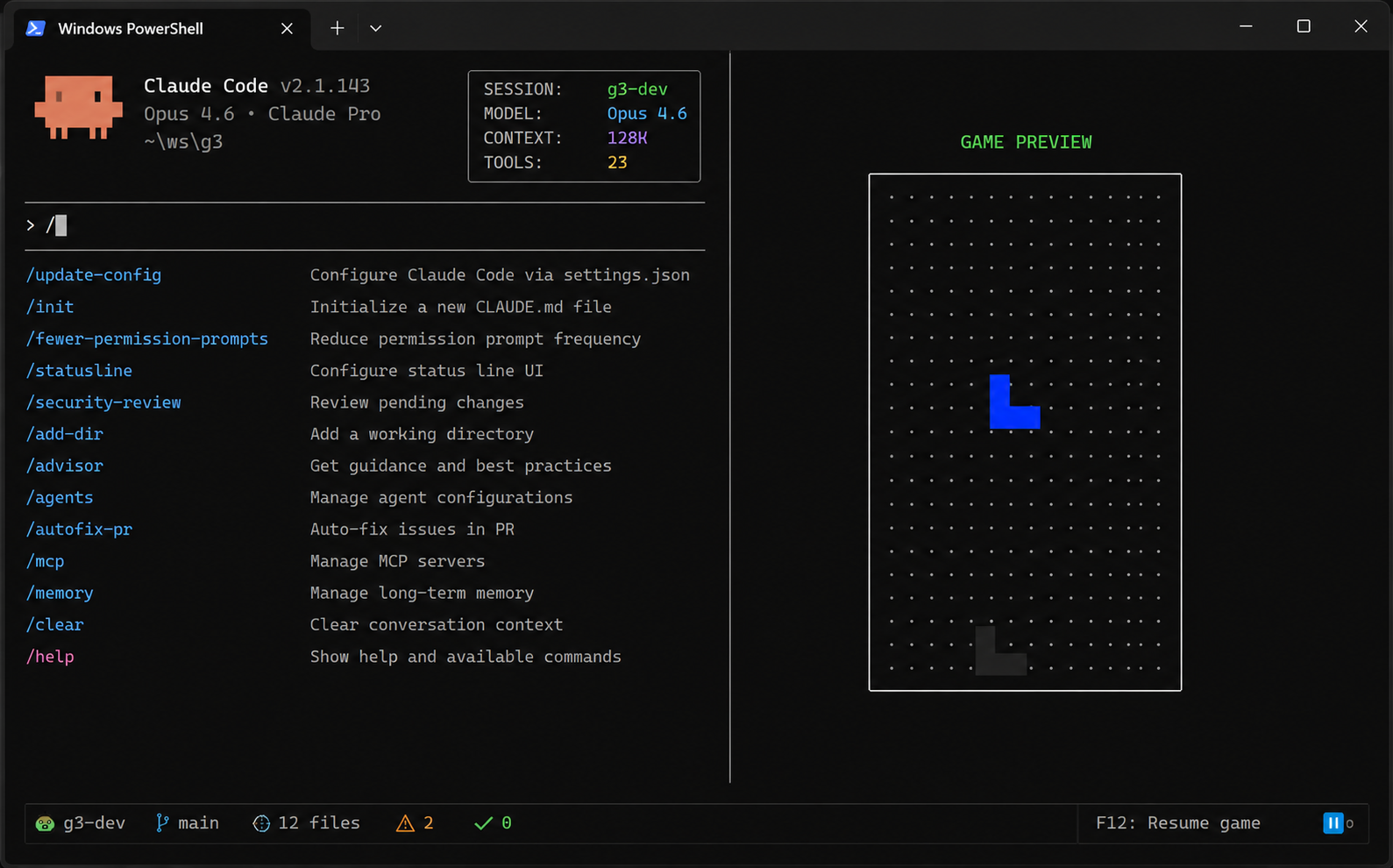
Your AI agent is writing code. Your build is running. Your deploy is rolling out. Instead of staring at a terminal, press F12 and play a game — right there, in a split panel next to your work. When the task finishes, press F12 again and you're back. Zero context switch.
Works with every CLI tool — Claude Code, Gemini CLI, GitHub Copilot CLI, Aider, or any command you run in a terminal. splitgame wraps your session and adds a game panel on the side. Your workflow stays exactly the same; you just get games alongside it.
# Install globally
npm install -g splitgame

# One-time setup: auto-launch in every new terminal
splitgame install

# That's it. Press F12 anytime to play.
Every new terminal session now has splitgame ready in the background. F12 to play, F12 to work. No windows to switch, no apps to open.
Requires Node.js >= 18. Use splitgame uninstall to remove anytime.
Seven games, all playable right in your terminal:
| Game | Controls | Goal |
|---|---|---|
| Snake | Arrow keys / WASD | Eat food, grow longer, don't hit yourself |
| 2048 | Arrow keys / WASD | Slide & merge tiles to reach 2048 |
| Tetris | Arrow keys / WASD, Space to drop | Clear lines, chase the high score |
| Tic-Tac-Toe | Arrow keys + Enter | Beat the minimax AI — or challenge Claude |
| Breakout | Left/Right arrows | Bounce the ball, break all the bricks |
| Minesweeper | Arrows + Enter/F to flag | Reveal cells, flag mines, don't explode |
| Flappy Bird | Space | Tap to flap, dodge the pipes |
Start a specific game directly: splitgame -g tetris
Browse all games from the in-app menu (press M during any game).
splitgame has built-in support for playing games with Claude Code as your opponent. When Claude is connected, Tic-Tac-Toe switches from AI opponent to a live match — you vs Claude, right in the terminal.
# One-time setup: register the MCP server with Claude Code
splitgame mcp-setup
Once configured, just ask Claude to play. It can see the board, make moves, and trash-talk.
| Key | Action |
|---|---|
| F12 | Toggle game panel on/off |
| Arrow keys / WASD | Move, navigate menus |
| Space / Enter | Action (drop, reveal, flap, select) |
| Esc | Back (pause > menu > minimize) |
| P / Ctrl+Space | Pause game & switch focus to terminal |
| R | Restart current game |
| M | Open game menu |
| X / Ctrl+C | Hide game panel |
| F | Flag cell (Minesweeper) |
| Modifier+Left/Right | Resize game panel |
Press P or Ctrl+Space to pause. The game panel stays visible, but your keyboard input goes to the terminal — interact with your CLI, check output, then press the toggle key to resume playing. Best of both worlds.
Esc is context-aware — it always does the most natural "back" action:
- Playing > Esc > soft pause (Space/Enter resumes)
- Soft-paused > Esc > game menu
- Menu > Esc > hide game panel
- Game over > Esc > game menu
Your top 10 scores per game are saved automatically to ~/.splitgame/scores.json. View them from the High Scores tab in the game menu. Chase your personal bests between coding sessions.
Customize the experience from the CLI or the in-app Config tab (press M, then Tab to Config):
splitgame config list                    # Show current settings
splitgame config set toggleKey ctrl+]    # Change toggle key
splitgame config set modifierKey alt     # Change modifier key
splitgame config set gameWidthPercent 60 # Game panel takes 60% of the screen
splitgame config reset # Reset to defaults| Setting | Default | Options |
|---|---|---|
toggleKey |
f12 |
f12, ctrl+] |
modifierKey |
ctrl |
ctrl, alt |
gameWidthPercent |
50 |
20 - 80 |
Don't want the auto-launch? Wrap any command manually:
splitgame claude              # Play while Claude Code works
splitgame gemini              # Play while Gemini CLI works
splitgame gh copilot          # Play alongside GitHub Copilot CLI
splitgame aider               # Play while Aider codes
splitgame npm run dev         # Play while dev server runs
splitgame python train.py     # Play while your model trains
splitgame cargo build         # Play while Rust compiles
Any command that runs in a terminal works with splitgame — AI agents, build tools, REPLs, you name it.
splitgame [options] [--] <command> [args...]
splitgame install              Auto-launch in new terminals
splitgame uninstall            Remove auto-launch
splitgame config <subcommand>  Manage settings
splitgame mcp-setup            Configure Claude Code integration
splitgame --list-games         List available games
splitgame --version            Show version
splitgame --help               Show help
| Platform | Install method |
|---|---|
| Windows | Patches Windows Terminal profiles to wrap each shell with splitgame. Supports standard profiles, VS dev prompts, and specialized toolchains. |
| Linux / macOS | Appends a guarded auto-launch snippet to .bashrc, .zshrc, or config.fish. |
Both platforms back up your original config to ~/.splitgame/backups/ before changing anything. splitgame uninstall restores everything. If you uninstall the npm package, it auto-restores too.
Requires a real TTY — Windows Terminal, iTerm2, or native console. Won't run in VS Code's integrated terminal or piped contexts.
- Fork the repository
- Create a feature branch
- Make your changes
- Run
npm testto verify - Submit a pull request
- Create
src/games/yourgame.tsimplementingIGamefromsrc/types.ts init(width, height)sets up the board;tick(deltaMs)advances state;getState()returns aGameRenderState- Add an entry to the registry in
src/game-registry.ts