Clean out a cluttered folder the way you'd swipe through a dating app: one file at a time, left to toss, right to keep.


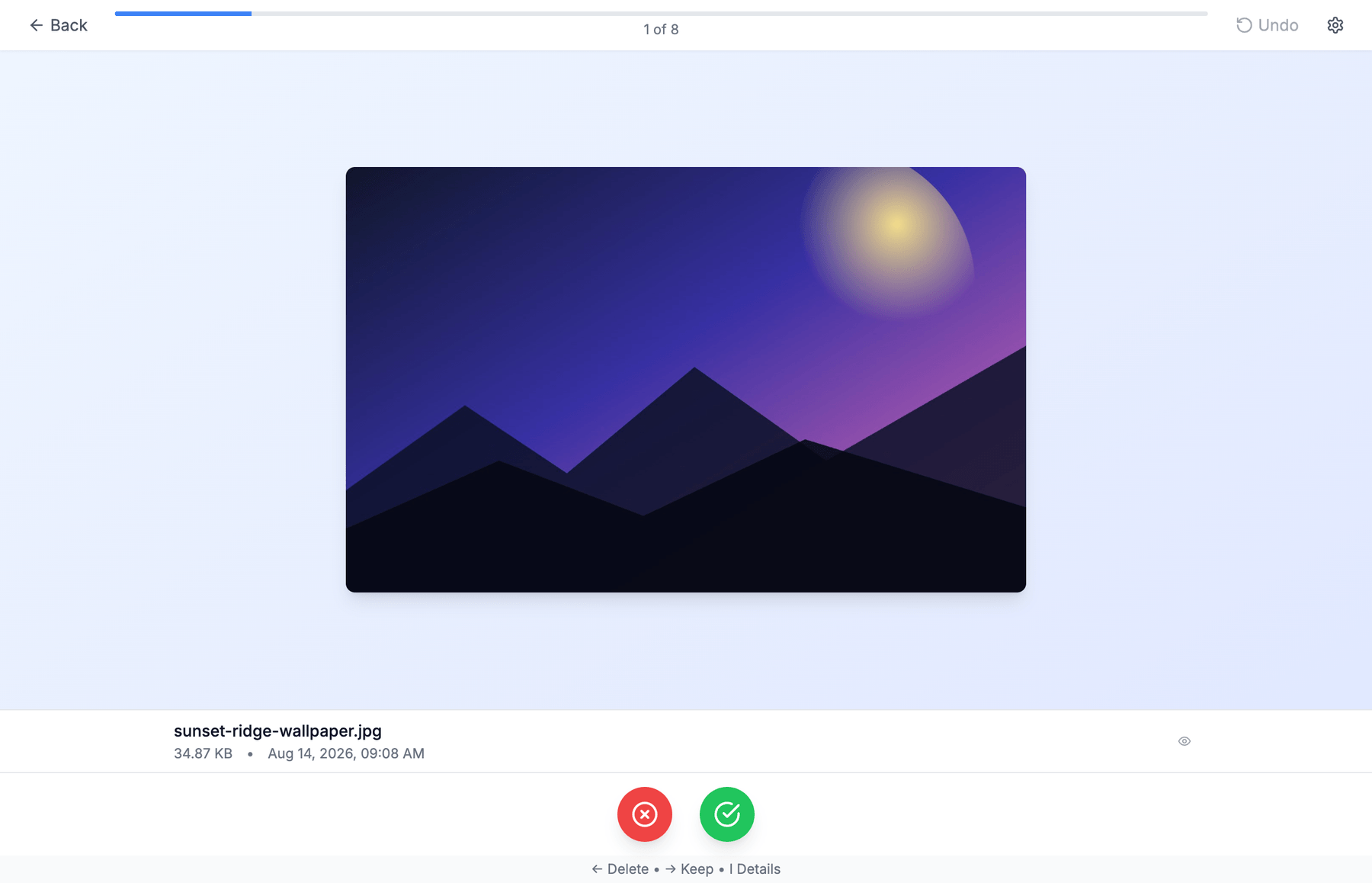
Point QuickToss at a folder — Downloads is the usual suspect — and it shows you each file with a preview so you can decide in a second. Deleted files go to the system Trash, and every action can be undone, so there's nothing to be nervous about.
Grab the latest version from the releases page. What changed in each one is in CHANGELOG.md.
QuickToss currently ships for macOS only:
| Your Mac | Download |
|---|---|
| Apple Silicon (M1/M2/M3/M4) | QuickToss-<version>-arm64.dmg |
| Intel | QuickToss-<version>-x64.dmg |
Not sure which you have? → About This Mac. "Apple M…" means Apple Silicon.
If macOS refuses to open the app with a message saying it's damaged, the app isn't actually broken — QuickToss isn't signed with a paid Apple Developer certificate yet, and macOS blocks unsigned apps downloaded from the internet.
To allow it, run this once in Terminal:
xattr -cr /Applications/QuickToss.appThen open the app normally. You'll need to repeat this after installing a new version. Removing this friction is tracked in #7.
QuickToss checks for new versions on launch and shows a notification when one is available. Installing is manual for now — the notification links to the release page. (Automatic in-place updates also need the code signing from #7.)
- Click Select Folder to Organize and pick a folder.
- For each file, decide:
- Toss — swipe left, press
←orBackspace, or click the red button. The file goes to the Trash. - Keep — swipe right, press
→orSpace, or click the green button. The file is left alone.
- Toss — swipe left, press
- When you reach the end, you get a summary of what you cleared.
| Key | Action |
|---|---|
← or Backspace |
Toss (move to Trash) |
→ or Space |
Keep |
I |
Show/hide file details |
Cmd+Z |
Undo the last action |
- Start with
Downloads. It's almost always the biggest win. - Don't overthink it —
Cmd+Zundoes any decision. - Nothing is permanently deleted. Tossed files sit in your Trash until you empty it.
- Images — JPEG, PNG, GIF, WebP, BMP, TIFF, HEIC
- Documents — PDF, and plain-text formats (TXT, MD, RTF, LOG, JSON, XML, CSV, YAML)
- Video — MP4, MOV, AVI
Word, PowerPoint and spreadsheet files are picked up when scanning but don't have a real preview yet — richer previews are tracked in #12.
- QuickToss makes no network requests with your files — everything happens locally. It only talks to GitHub to check whether a newer version exists.
- Tossed files go to the system Trash, never a permanent delete.
- It only reads the folder you explicitly choose.
Setup, architecture, and the release process are in CONTRIBUTING.md. Bug reports and ideas are welcome in issues.
MIT.