


LiveTranslate is a low-latency, real-time speech translation subtitle overlay for Windows. It captures audio from your microphone or system speakers, transcribes it using state-of-the-art AI, and provides instant translation in a sleek, semi-transparent floating window.
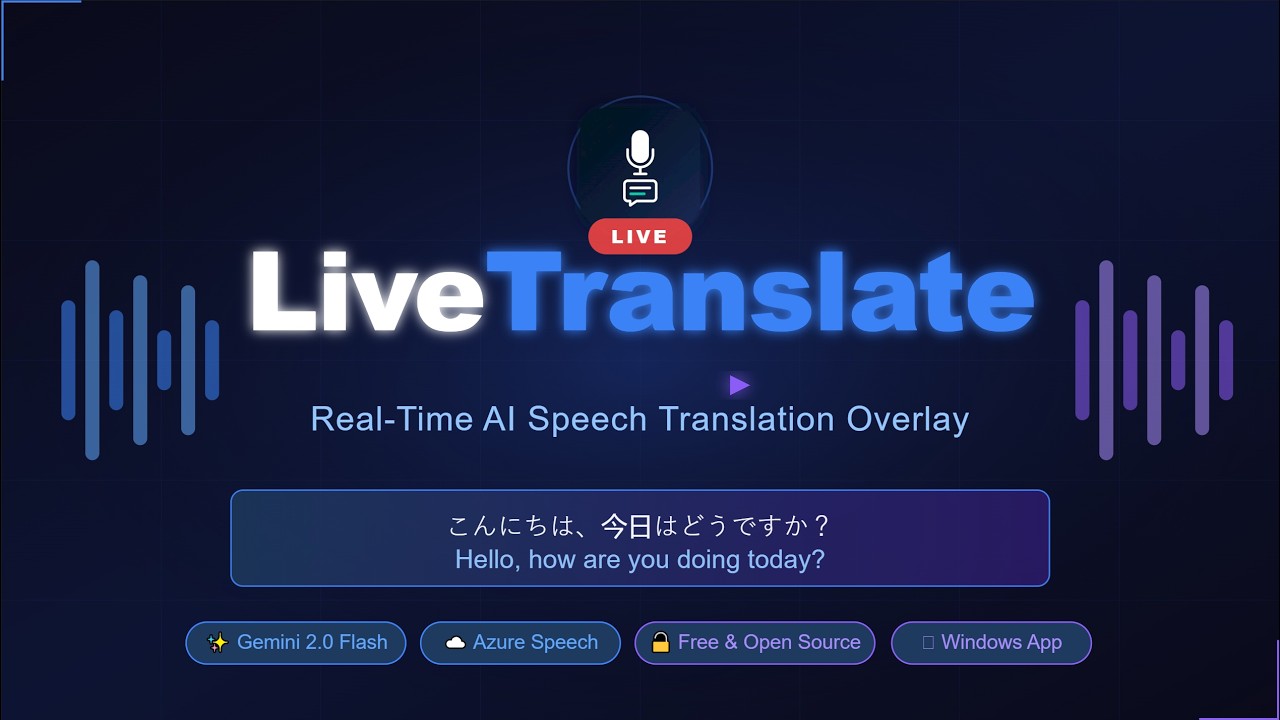


- 🚀 Near-Instant Translation: Leverages Google Gemini 2.5 Flash or Azure Speech Services for real-time performance.
- 🎙️ Dual Audio Source:
- Microphone mode (default): Captures your voice via any input device.
- System Audio mode: Captures all desktop/speaker output via WASAPI loopback — perfect for translating videos, calls, or games without a headset.
- 🖥️ Non-Intrusive UI:
- Semi-transparent overlay stays on top of meetings, videos, or games.
- Fully draggable and resizable (via settings).
- Interactive toggle: Double-click to instantly hide/show text.
- Status badge in the subtitle bar shows the active audio source (🎙 or 🔊).
- ⌨️ Global Hotkey:
Ctrl+Shift+Lto toggle listening from any application. - 📥 Tray-Based: Operates entirely from the system tray for a clean, taskbar-free workspace.
- 🎨 Customizable: Change font size, colors, window opacity, and quality mode to match your preference.
LiveTranslate uses a modular pipeline to ensure the lowest possible latency between speech and subtitle display.
graph LR
    A1[🎙 Microphone] -->|mic mode| B
    A2[🔊 System Speakers] -->|system mode - WASAPI loopback| B
    B[🔉 AudioCapture\n16kHz PCM queue] --> C{STT Engine}
    C -->|Gemini Live| D[✨ Gemini 2.5 Flash\nNative Audio - STT + Trans]
    C -->|Azure Speech| E[🎙️ Azure STT\nContinuous Recognition]
    E --> F[🌐 Azure Translator\nor Gemini Translate]
    D --> G[🖥️ Subtitle Overlay]
    F --> G
    G --> H[🎞️ Floating Window\nstay-on-top]
- Capture (
audio_capture.py):PyAudioWPatchcaptures raw 16kHz PCM in 100ms chunks using one of two modes:mic(default): Reads from a selected microphone input device.system: Opens a WASAPI loopback on the default output device, then downmixes to mono and resamples to 16kHz — capturing everything playing through your speakers.- A drop-oldest bounded queue (
AUDIO_QUEUE_MAX_CHUNKS = 50) prevents memory growth under load.
- STT & Translation:
- Google Gemini (
gemini_client.py): Streams audio chunks over WebSocket to the Gemini 2.5 Flash Native Audio Live API for simultaneous real-time transcription and translation (lowest latency, ~200ms). - Azure (
azure_speech_client.py+azure_translator.py): Feeds audio to Azure Cognitive Services for continuous speech-to-text, then calls Azure Translator (or Gemini Translate) for high-fidelity neural translation.
- Google Gemini (
- Display (
subtitle_window.py): A customPyQt5frameless window renders translated text with semi-transparency and "stay-on-top" priority. The status badge (🎙 / 🔊) reflects the active audio source.
We provide two ways to run the application for Windows:
- Download the Installer: Go to the GitHub Releases page and download
LiveTranslate_Setup.exe. - Install: Double-click the Setup file. It installs the backend dependencies and creates a fast-launching Desktop shortcut.
- Launch: Open LiveTranslate from your Desktop or Start Menu.
- Download the Executable: Download
LiveTranslate.exefrom the Releases page. - Place the file anywhere you like (Desktop,
C:\Tools\, etc.). - Launch: Double-click it. (Note: The standalone executable takes ~10-15 seconds to open as it must decompress itself in the background).
- Configure (Optional): Right-click the LT icon in the system tray → Settings to enter your own API keys.
- Start: Right-click the tray icon → Start Listening.
Warning
Windows SmartScreen Warning — this is expected and safe to bypass.
Because LiveTranslate.exe is an unsigned open-source executable, Windows will show a blue "Windows protected your PC" dialog the first time you run it. Here's how to proceed:
- Click "More info" (small link below the warning text)
- Click "Run anyway"
This warning appears for all community-built executables that have not been commercially signed. You can review the full source code in this repository.
Note
No API Keys Required: The application now comes embedded with default public API keys so you can test it immediately!
However, for long-term use, you should add your own private keys in the Settings menu. You can enter at least one of:
- Azure Speech key — for Azure engine (requires Azure account)
- Gemini API key — for Gemini engine (free tier available)
Settings are saved locally in config.json next to the .exe (or in %APPDATA%\LiveTranslate\ if the exe is in a restricted folder).
LiveTranslate is designed for personal use, meaning you use your own AI provider keys. This ensures your data remains under your control and you only pay for what you use (often within free tiers!).
Right-click the tray icon → Settings to configure. The Settings window has three tabs:
- Azure Speech key / region — required when using the Azure STT engine.
- Audio Source: Choose between:
- 🎙 Microphone — captures your voice (default).
- 🔊 System Audio — captures all desktop audio via WASAPI loopback (requires
PyAudioWPatch).
- Microphone device — pick a specific input device or leave on System Default.
- Connection Test button to verify your Azure Speech credentials.
- STT Engine:
Azure SpeechorGemini Live. - Translation Engine:
Azure TranslatororGemini. - Google Gemini API key — get a free key at Google AI Studio. Uses
Gemini 2.5 Flash Native Audiofor live STT andGemini 2.5 Flashfor translation. - Azure Translator key / region — get keys at the Azure Portal.
- Opacity, font sizes, auto-clear delay, max history lines.
- Quality Mode (see table below).
- Debug Mode toggle.
Note
Your keys are stored locally in config.json. They are never uploaded or shared.
LiveTranslate supports several bi-directional language presets out of the box:
- EN ↔ VI: English and Vietnamese (Default)
- EN ↔ JA: English and Japanese
- EN ↔ ZH: English and Chinese (Simplified)
- EN ↔ KO: English and Korean
- EN ↔ ES: English and Spanish
- EN ↔ FR: English and French
- EN ↔ DE: English and German
- EN ↔ RU: English and Russian
- EN ↔ PT: English and Portuguese
- EN ↔ IT: English and Italian
LiveTranslate supports three quality presets that control translation responsiveness vs. accuracy:
| Mode | When to use | Interim debounce | Accuracy bias |
|---|---|---|---|
fast |
Live conversation, gaming | 200ms | Low |
balanced |
General use (default) | 500ms | Medium |
accurate |
Lectures, slow speech, high stakes | 800ms | High |
To change the quality mode: right-click tray icon → Settings → Display tab → Quality Mode dropdown.
Note
Quality mode changes take effect on the next Start Listening session.
You can switch between these presets instantly via the Settings window.
src/
├── audio_capture.py      # Dual-mode audio: mic (PyAudio) + system (WASAPI loopback)
├── app_state.py          # AppState enum: IDLE / STARTING / LISTENING / RECONNECTING / ERROR
├── azure_speech_client.py# Azure Cognitive Services continuous Speech-to-Text
├── azure_translator.py   # Azure Translator neural translation
├── config.py             # All runtime settings, quality presets, language pairs
├── gemini_client.py      # Gemini Live API WebSocket client (native audio STT + translate)
├── gemini_translator.py  # Gemini text-only translation fallback
├── json_config.py        # Persistent config read/write (config.json / %APPDATA%)
├── logger.py             # Structured logging setup
├── metrics.py            # PipelineMetrics latency tracking
├── settings_window.py    # Dark-themed tabbed QDialog (STT / Translation / Display)
├── subtitle_window.py    # Frameless transparent stay-on-top subtitle overlay
├── translator.py         # Lang-pair detection helpers
└── tray.py               # System tray icon, menu, and engine switching logic
- Frontend:
PyQt5for the high-performance transparent overlay and system tray management. - Audio:
PyAudioWPatch— a Windows-specific fork of PyAudio that adds WASAPI loopback support for capturing system audio. Falls back to standardPyAudiofor mic-only mode if WPatch is unavailable. - AI Engines:
google-genai: WebSocket-based interaction with the Gemini 2.5 Flash Native Audio Live API for real-time STT and the Gemini 2.5 Flash model for text translation.azure-cognitiveservices-speech: Official SDK for Azure Continuous Speech-to-Text.- Azure Translator REST API for neural translation.
- Utilities:
pystray(tray icon),keyboard(global hotkeys),python-dotenv(config),Pillow(tray icon rendering).
- Local Processing: Audio is streamed directly from your device to the AI provider. No data is stored on our servers.
- Secret Management: Your API keys are stored locally in
config.jsonand are never shared or uploaded. - Open Source: Audit the code yourself to see exactly how your data is handled.
Check out the plan/ folder for high-resolution logos, marketing copy, and screenshots to help spread the word!
Contributions are what make the open source community such an amazing place to learn, inspire, and create. Please see CONTRIBUTING.md for details.
Distributed under the MIT License. See LICENSE for more information.

|
NGÔ TRUNG KIÊN 🌐 kngo.netlify.app |