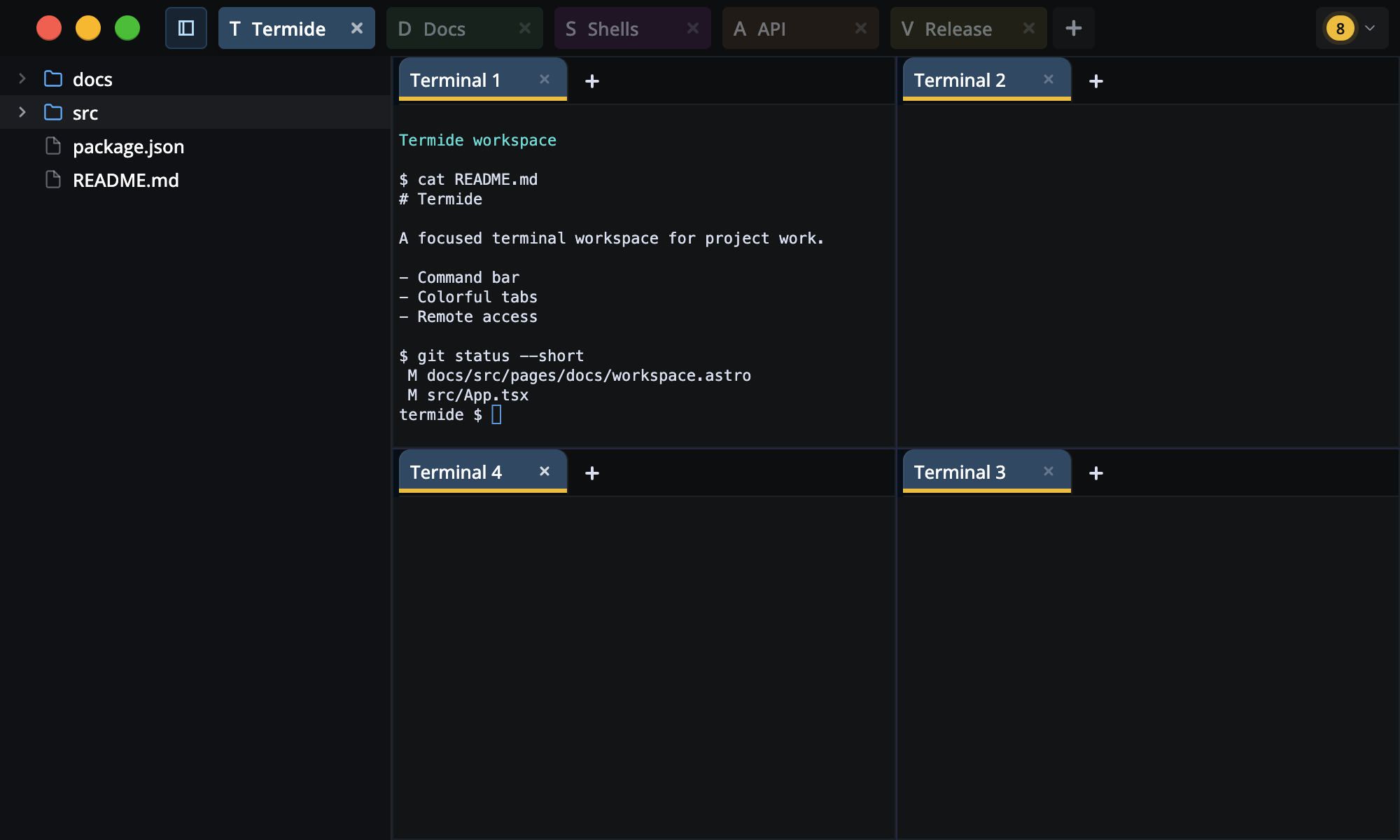
Terminay is a desktop terminal workspace built with Electron, React, and Vite. It pairs native shell sessions with dockable project tabs, file tools, macros, settings, and browser-based remote access so project work can stay in one focused desktop app.

Generated automatically from the checklists in specs/tasks/ and
specs/tasks_completed/.
- Open multiple native shell sessions in project workspaces
- Split terminal, file, and folder tabs horizontally or vertically with Dockview
- Reorder tabs, pop active panels into separate windows, and close the active tab from shortcuts or menus
- See recognized Codex status at a glance with journal-driven RAG indicators, a project-scoped Agents pane, and exact click-to-focus navigation
- Keep activity indicators for ordinary terminals through structured terminal signals and raw-output fallback
- Create project tabs with root folders, per-project file explorer state, colors, and short icons
- Rename project and terminal tabs, set tab colors, and inherit project styling
- Use the Command bar to search app commands and run saved macros
- Build reusable macros with typed steps, placeholder fields, waits, clipboard paste, and stored secrets
- Browse project folders from a resizable sidebar with Git new/modified coloring
- Open folders as dockable folder tabs with tree, list, thumbnail, and gallery views
- Open files beside terminals with preview, text, hex, and Git diff modes
- Edit and save text/hex files, detect external changes, and resolve dirty-file conflicts
- Preview Markdown, images, and PDFs, with large-file handling for heavy text buffers
- Optionally record terminal sessions to local asciicast files and replay them from a timeline
- Tune terminal appearance, shell launch behavior, shortcuts, accessibility, scrolling, themes, and remote host settings
- Pair a browser over the built-in HTTPS remote host, manage devices, inspect live connections, and review audit events
- Check for GitHub release updates from the app chrome
- Node.js 22+
- npm 10+
- macOS or Linux for the packaged binaries in CI
npm cinpm run devnpm run smokesmoke runs Biome linting and the renderer/main TypeScript plus Vite build.
New terminals use server-owned shell profiles. System default follows the connected server account shell, while custom profiles can select an executable or WSL distribution, preserve argument boundaries, apply an environment overlay, and carry optional presentation metadata. Server, project, and one-terminal choices are separate; changing a profile affects only terminals created afterward.
Configure profiles and the default working-directory policy under Settings → Terminal → Shell Profiles. Discovered shells can be used once or copied into a durable custom profile. Environment values are available only in the write-authorized editor and are omitted from catalogue, workspace, session, recording, diagnostic, and remote-summary data.
Version-1 shell.program, shell.startupMode, and shell.extraArgs settings
are imported once through a recoverable migration. They are no longer exposed
as production settings; the migration reader remains temporarily for existing
installations.
Terminal recording is off by default. Enable Record new terminals in Settings, or right-click a terminal tab and choose Start Recording for one session. Recordings are local asciicast v3 .cast files saved under ~/Documents/TerminaySessions/YYYY-MM-DD/ by default, with Terminay metadata stored beside each cast file.
Recording can capture terminal output, typed input, commands, file paths, tokens, and other sensitive text. Terminay uses a conservative best-effort filter for likely password or secret prompts, but terminal apps do not expose a perfect universal secure-input signal. Keep recordings local unless you deliberately share them.
Terminay observes Codex session journals owned by the exact terminal process tree. Terminal tabs use compact RAG indicators: yellow while working, red when waiting for input or blocked, green when done, and neutral when idle. Unread acknowledgement is tracked separately, so viewing an agent never changes the state reported by the provider.
The project sidebar includes an Agents pane with root agents and their in-process subagents. It shows only agents belonging to that project. Root rows use a descriptive session title when available and retain their terminal title as context without repeating inherited child metadata. Codex subagents use their structured task name (for example, math_question_one) when available, with numbered labels only as a fallback. Prompts stay on one compact line. Subagents are collapsed by default, never auto-expand, and each root remembers its manual expansion state while switching projects. Selecting an agent switches to its exact terminal; selecting a subagent without its own PTY focuses the parent agent's terminal.
Explorer, Agents, and Git can be reordered vertically using the drag handle on each panel header (or the Up/Down arrow keys while that handle is focused). The chosen order is saved for future project tabs.
Agent status and sidebar under Settings → AI → Agents is enabled by default. It observes process-bound Codex rollout journals without modifying provider configuration. Turning it off stops observation and clears projected status.
The activity control in the app header shows current working agents plus items that need acknowledgement and provides the same click-to-focus behavior. Agent identity is tied to the exact Terminay terminal session, not a tab title or working directory.
Ordinary shells and unsupported agents continue to use terminal-activity fallback. Under Appearance → Tab Indicators, Use terminal signals for activity enables OSC 9;4 progress, OSC 133/633 command markers, OSC 9/777 notifications, and terminal BEL before falling back to recent raw output. These signals never override journal-backed agent state.
Progress signal timeout (default 15 seconds) controls how long an unrefreshed fallback progress signal can keep a tab working. Escape sequences are observed for state and still pass through to the terminal unchanged.
Local Electron tests run inside the pinned Linux Docker environment, so they
cannot open windows or steal focus from the host desktop. Optional Playwright
file, line, and grep arguments are forwarded into the container. Reports and
failure traces are copied to .docker-cache/e2e/<run>/.
npm run test:e2e
npm run test:e2e -- e2e/settings.spec.ts:212npm run buildPlatform-specific packaging is also available:
npm run build:mac
npm run build:linux
Release packaging syncs package.json from the release tag during CI, so the source tree can use the placeholder version while published builds carry the tagged version.