

A lightweight Windows 11 taskbar monitor for CPU, memory, disk, network, GPU and ping.
Pulsar puts live graphs or compact text for your system's vital signs right on the Windows 11 taskbar. Place it beside the tray or at the left edge, nudge it with an offset, or let it float anywhere on screen. Rest the mouse on an item for a detailed popup.
Graph mode: scrolling history for every item, here beside the tray.

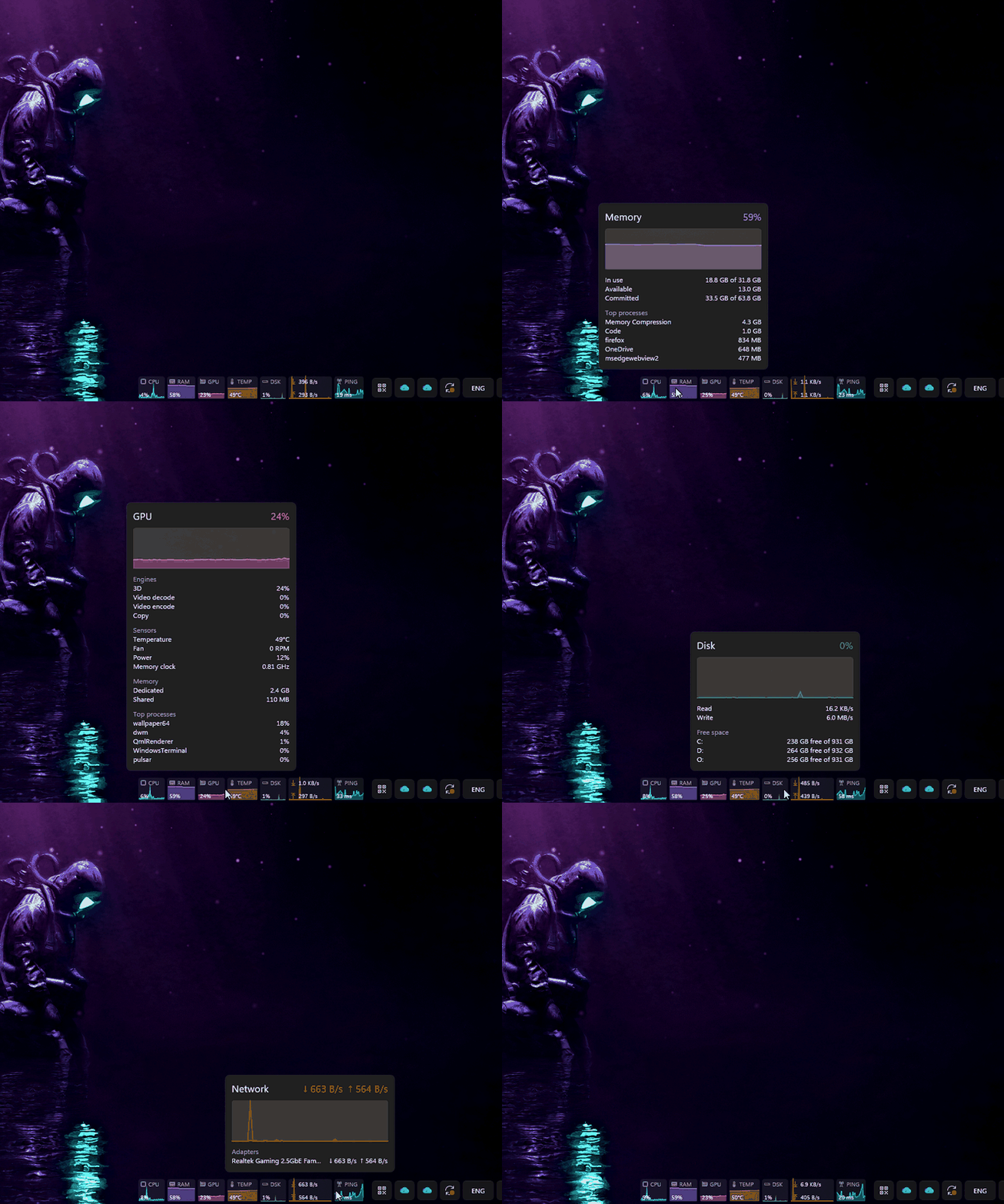
Hover for details: CPU cores and top processes, memory, GPU engines and sensors, drives, network adapters and ping statistics.
Text mode and label styles: full labels, one-letter labels, icons with labels, and icons alone.

Floating: drag it anywhere, here with a panel background, in graph and text mode.

- Graphs or text. Graph tiles with scrolling history, or a dense text layout that stays readable on a standard 48 px taskbar. On a shorter taskbar, graph tiles can put the icon, label and value on one line.
- Labels your way. Full labels (
CPU), one-letter labels (C), icons, or icons alone. - Hover details. Each item opens a popup:
- CPU: per-core bars, clock speed and top processes
- Memory: commit charge
- Disk: free space per drive
- Network: traffic per adapter
- GPU: engine breakdown, VRAM, and temperature, fan and power
- Ping: min/avg/max and packet loss
- CPU temperature and power, if you opt in. Windows gives unelevated programs no real CPU temperature or power draw, so these need the optional sensor service, which also adds a few extra CPU and GPU readings.
- GPU monitoring for any vendor. Utilisation matches Task Manager. Temperature is read the same way Task Manager does, with no drivers or vendor SDKs.
- Per-drive disks and adapter choice. Show each drive's activity or used space, and count one network adapter or all physical ones.
- Stays put. Survives Explorer restarts, taskbar moves, auto-hide, DPI changes and multiple monitors, and fades out while a fullscreen game or video is in front.
- Floating mode. Detach it from the taskbar, drag it anywhere, and lock it in place.
- Looks right on your taskbar.
- theme presets
- custom label, value and item colours
- tile and panel backgrounds, which help with TranslucentTB and similar
- any installed font, bold optional
- Light. About 10 MB of memory and well under 1% CPU. No admin rights, no drivers and no background services, unless you opt in to the sensor service.
Pulsar needs Windows 11.
-
winget:
winget install oMaN-Rod.Pulsar -
Installer: download
pulsar-<version>-setup.exefrom Releases. It installs for your user only (no admin prompt), adds a Start Menu entry, and can start Pulsar when you sign in. A portable zip is also on the Releases page. -
Cargo:
cargo install --locked pulsar-monitorThis puts
pulsar.exeandpulsar-settings.exein%USERPROFILE%\.cargo\bin; runpulsarto start it. Building needs Rust 1.92+, the MSVC build tools and the Windows SDK. To remove it, turn off Start with Windows in Settings, exit Pulsar, then runcargo uninstall pulsar-monitor.
SmartScreen: releases are not code-signed yet, so Windows may warn that the installer is from an unknown publisher. Choose More info → Run anyway. Signing through the SignPath Foundation is planned.
- Tray icon: left-click opens Settings; right-click opens the menu (graphs or text, labels, icons, hover details, hide in fullscreen, floating, Task Manager, exit).
- Overlay:
- left-click opens Task Manager
- right-click opens the same menu
- rest the mouse on an item for details
- in floating mode, drag it to move it
- Launching Pulsar again while it runs opens Settings.
- The tray icon can be turned off in Settings → General; it then appears only while a notification is showing.
Everything Pulsar shows by default is read without administrator rights. A few readings need kernel access, which Pulsar does not have and does not ask for by default. Two optional pieces provide them, and both need administrator rights:
- PawnIO (source), an open-source signed driver by namazso. It only runs modules signed by its author, and the ones Pulsar uses can read a fixed list of registers.
- The Pulsar sensor service (
pulsar-sensors.exe), which reads temperatures and power draw through PawnIO once a second and publishes those numbers. It runs as a Windows service from%ProgramFiles%\Pulsarand takes no input from other programs. Pulsar itself stays unelevated.
| Reading | Built in | With the sensor service |
|---|---|---|
| CPU usage, clock speed, per-core load, top processes | ✓ | |
| Memory, disk, network and ping | ✓ | |
| GPU usage, VRAM, temperature, fan and power | ✓ | |
| CPU temperature (item and popup) | Intel, and AMD Ryzen (Zen and later) | |
| CPU power (item and popup) | Intel, and AMD Ryzen (Zen and later) | |
| Hottest core (popup) | Intel | |
| Thermal throttling (popup) | Intel | |
| GPU hot spot (popup) | NVIDIA RTX 50 series | |
| GPU memory temperature (popup) | NVIDIA RTX 30 series and later |
The GPU rows appear only where the card has those sensors, and they need one of the supported CPUs.
The installer offers both pieces on its CPU temperature page; run it again to add or remove them later. For a portable or Cargo install, install PawnIO (winget install namazso.PawnIO), then run pulsar-sensors.exe --install from an administrator terminal (--uninstall removes it). Then turn on CPU temperature or CPU power in Settings → Items.
Without the service, the CPU temperature and CPU power items show "—" and their popup says what is missing; the other rows are simply left out.
| What | Where |
|---|---|
| Settings (applied live) | %APPDATA%\Pulsar\config.toml |
| Logs and crash reports | %LOCALAPPDATA%\Pulsar\logs |
| A settings file that could not be read | backed up as config.toml.bak, and defaults are used |
Pulsar makes only two kinds of network request:
- Ping: pings the host you choose. Ping is off until you enable the Ping item.
- Update check: asks GitHub's releases API about new versions once a day. Turn it off in Settings → General. Nothing is ever downloaded or installed automatically.
There is no telemetry.
If something looks wrong, open Settings → About → Logs and look at pulsar.log. If Pulsar crashes, it writes a crash-*.txt report there and offers to open it the next time it starts.
Please open an issue with the log and any crash report attached.
cargo build --release
cargo test --workspace
scripts\package.ps1 builds the installer, the portable zip and the winget manifests into dist\. It needs Inno Setup 6.3 or later. Also see the manual testing checklist and the release guide.
GPL-3.0-or-later. The settings window is built with Slint, used under its GPLv3 option.