Repository navigation
Home
Turn any phone into a polished remote for your home theatre PC. Scan a QR code that appears on screen, open it in any browser, and you're controlling your HTPC — no app install, no pairing codes.
| Topic | What's covered |
|---|---|
| Installation | Linux .deb / .rpm / .tar.gz, Windows .zip, build from source |
| Phone Setup (PWA) | Add Glide to your phone's home screen for an app-like experience |
| Connecting Your Phone | How to connect, popup behaviour, reconnecting |
| Controls Reference | Every gesture, button, and section tab explained |
| TV and IR Control | Control your TV too — transports, code learning, hardware quirks |
| Adding Devices | The in-app Setup screen, step by step |
| App Launcher | Configuring which apps appear and how they launch |
| Configuration | Idle timeout, env vars, service drop-ins |
| X11 and Wayland | Backend differences, text input, uinput setup |
| Troubleshooting | Popup not showing, phone can't connect, input not working |
| Architecture | How all the pieces fit together |
| Building from Source | Building the packages yourself with Docker |
Your phone (any browser)
        │  WebSocket over LAN
        ▼
FastAPI server on HTPC  ──▶  pynput / evdev+uinput / Windows input
        │
        ▼
QR overlay (GTK3 on Linux · tkinter on Windows)
hides on connect, reappears after 2 h idle
- No app required. Standard browser, any OS, any phone.
- Installable PWA. Tap "Add to Home Screen" for an icon and fullscreen experience.
- Cross-platform server. Runs on Debian/Ubuntu, Fedora/RHEL, Arch, openSUSE, and Windows.
- Controls your TV too. Add an IR blaster and get a TV tab — power, volume, HDMI input, d-pad. See TV and IR Control.
- Set up from the phone. A code on the TV keeps configuration to whoever's in the room. See Adding Devices.
- Auto-detects X11 / Wayland on Linux — no config needed.
Controlling the HTPC is entirely local. Adding a TV via a Tuya IR blaster involves that vendor's cloud for setup, and optionally at runtime — TV and IR Control explains how to keep it local afterwards.
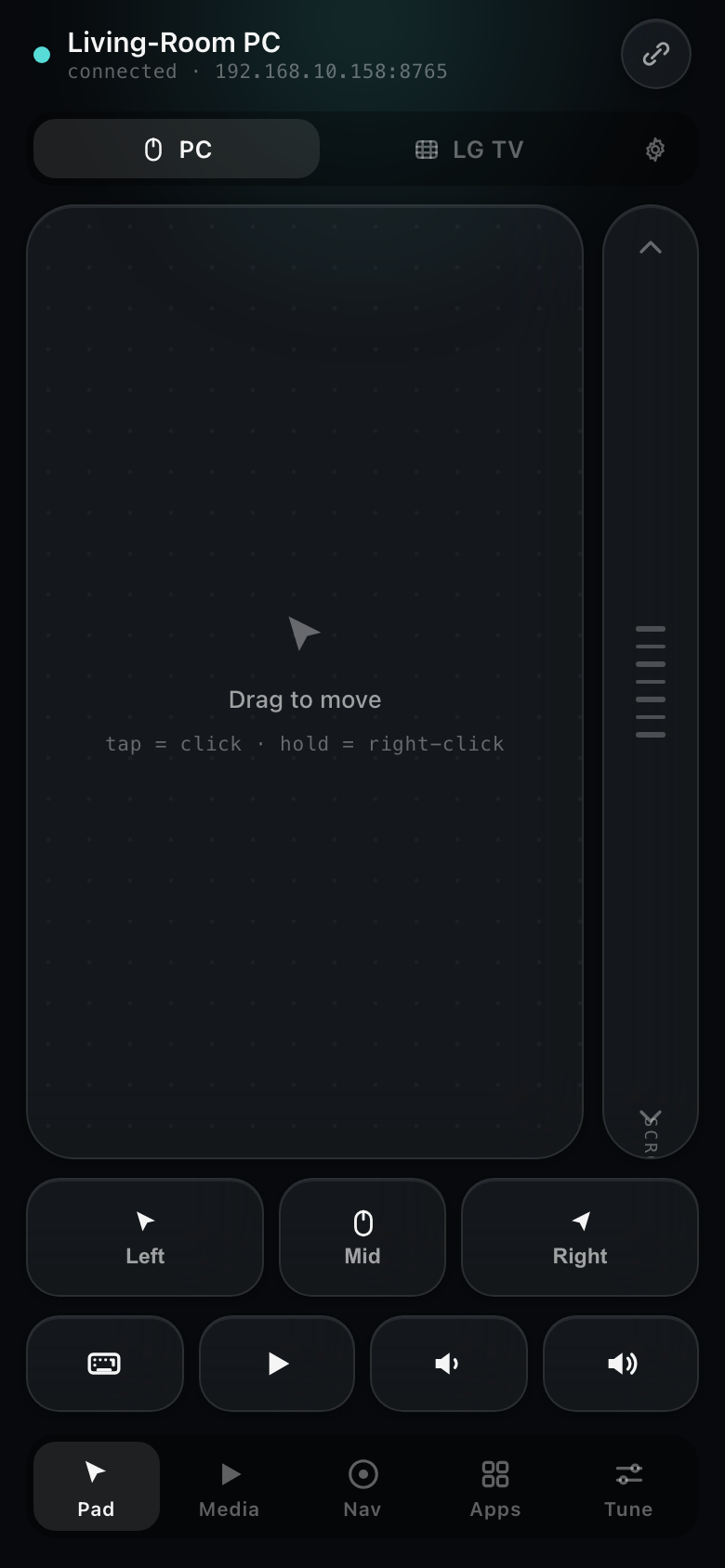 |
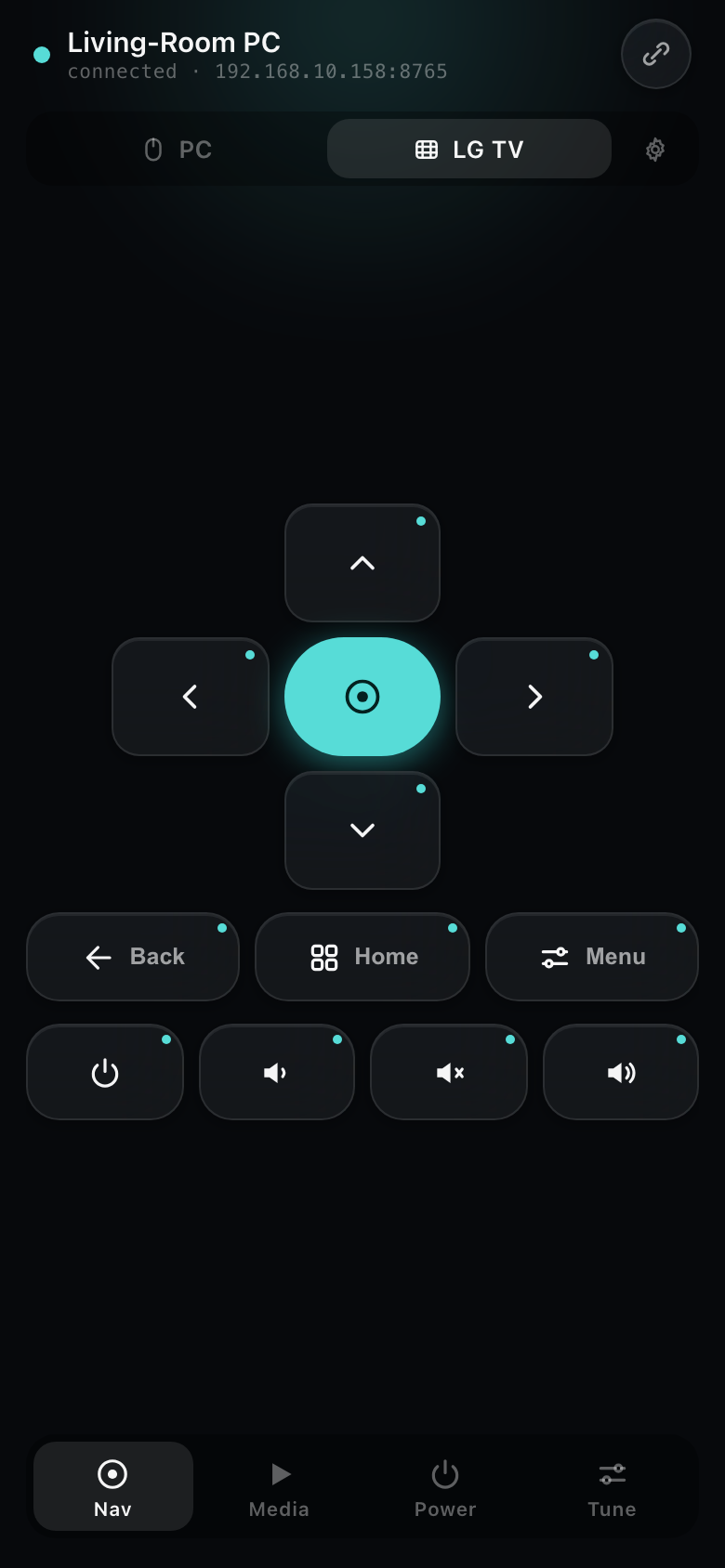 |
| The PC — trackpad, quick actions, section tabs | The TV — same layout, driving it over IR |
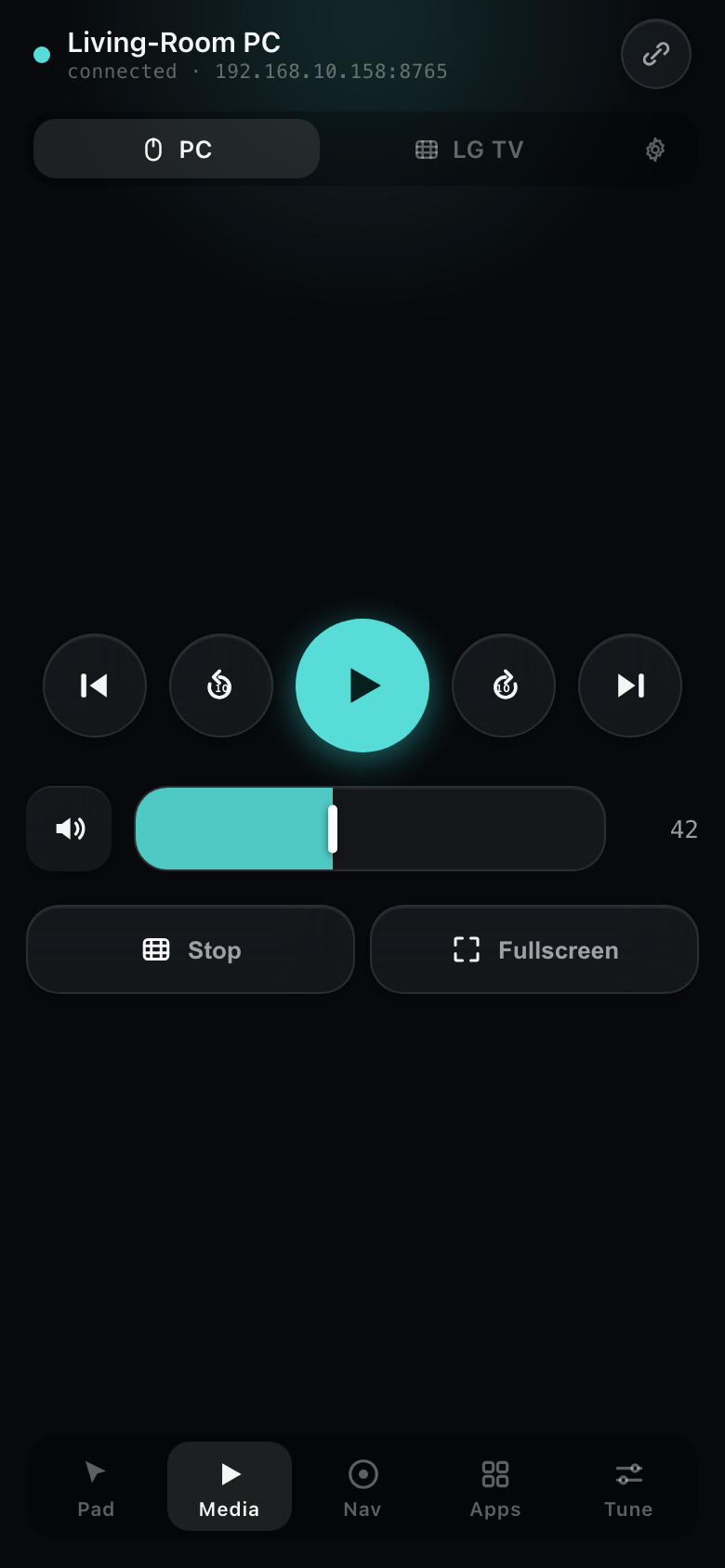 |
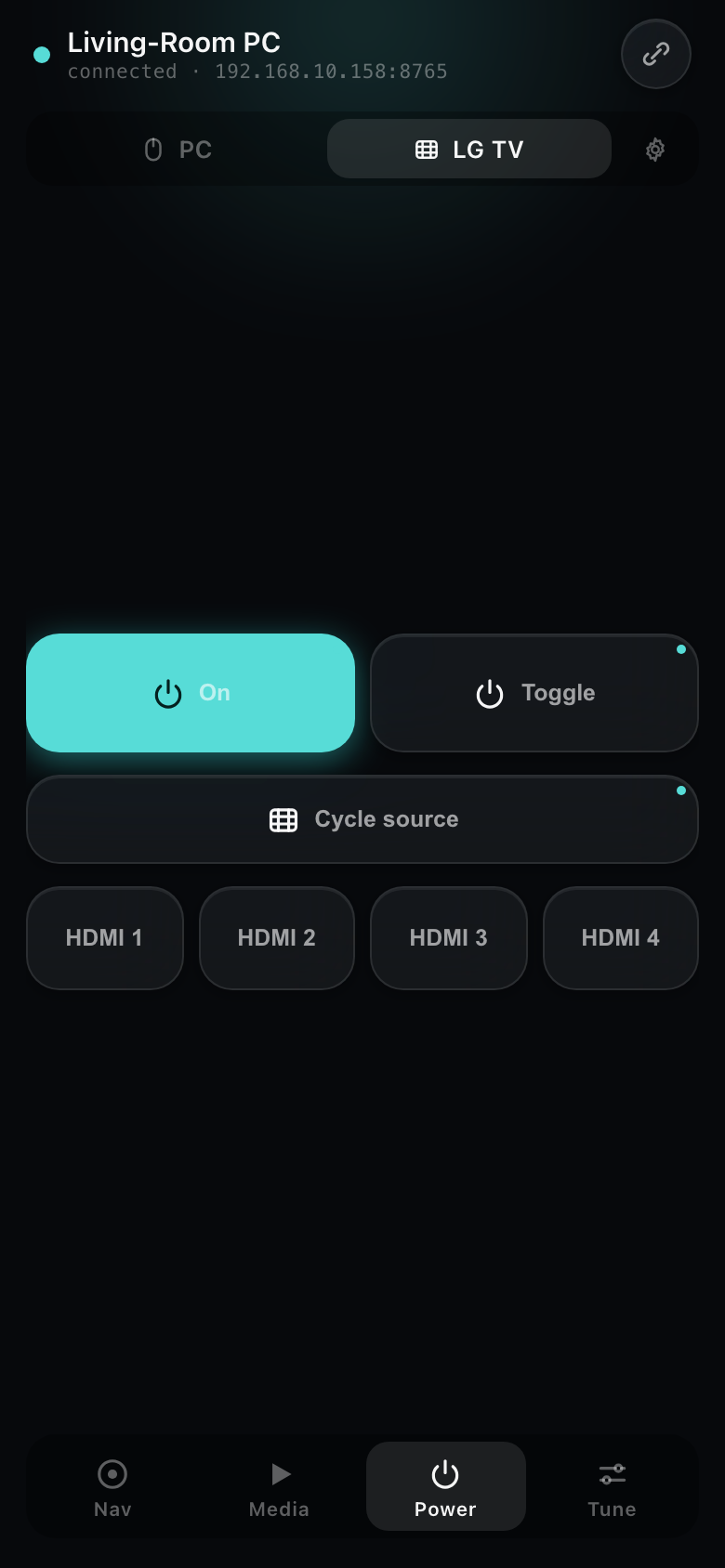 |
| Media | TV power & source — discrete On, HDMI 1–4 |
- Install on your HTPC — download the package for your OS from the Releases page
- Log out and back in (Linux) or the QR window opens automatically (Windows)
- Scan the code — your phone browser opens and you're in control
See Installation for the full walkthrough, and Phone Setup (PWA) to add Glide to your home screen.