Interface
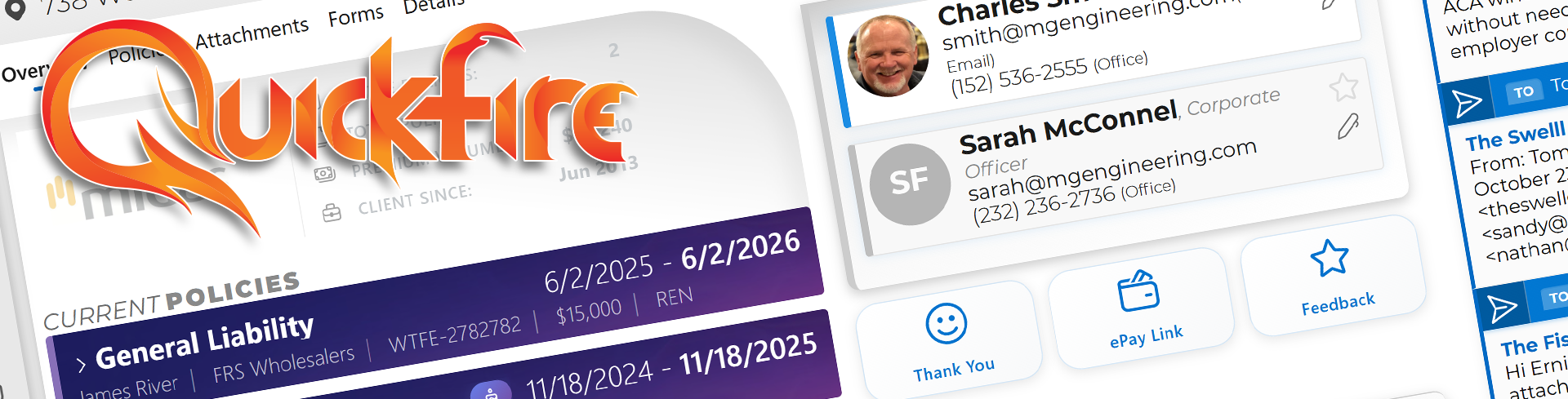
Quickfire’s interface is a Fluent UI shell that wraps global navigation, FireSearch, Enhanced AI Chat (Agents), messaging, and settings. The goal is simple: get anywhere in the system in a couple of keystrokes.
- Provides global navigation (left rail) across major modules.
- Includes FireSearch (“search everything”) in the top bar.
- Hosts Enhanced AI Chat (Agents), chat/SMS (Chopper), notifications, and status indicators.
- Supports trigger links and keyboard shortcuts for speed.
In the standard layout you’ll see:
- Home
- Clients
- Renewals
- Leads
- Carriers
- Contacts
- Locations
- Policies
- Agents (Enhanced AI Chat)
- Queue/Q logo (top-left): click-and-hold to record a voice command for the AI agent (where enabled).
- FireSearch: type a few characters and open a record immediately.
- Outreach / Blastmail (mail icon) with badge counts for alerts.
- Chat / Messaging (chat bubble) for staff, website chat, and client SMS.
- Help (info icon) opens the in-app documentation drawer.
- Settings (gear icon).
- User menu (profile icon) for account/profile and sign-out.
The search bar at the top of every screen is designed to behave like a command palette:
- It searches clients, policies, carriers, contacts, addresses, and renewals.
- Results update as you type (fast enough to feel instant).
- Keyboard tips:
- Use ↑ / ↓ to select a result.
- Press Enter to open it.
- Press Ctrl+Enter to open in a new tab.
- Press Ctrl+Shift+F from anywhere to jump focus into FireSearch.
The Help drawer is designed so you can navigate the app and the docs at the same time:
- It stays open as you move between pages.
- Use the “pane” toggle at the top to widen/narrow the drawer for readability.
- Help content is organized by section (e.g., Agents) and you can jump back up to the main directory quickly.
Click the chat bubble to open the chat drawer. It supports three channels:
Internal office chat for quick questions without blowing up someone’s inbox.
If someone starts a chat from your website:
- It shows up as an incoming web chat thread in the drawer.
- A sound can play when new chats arrive (user preference).
- You can click a “processed” bubble/flag on a thread so your team knows someone is handling it.
- Typing indicators show when the other party is typing.
If SMS is enabled via a telephony integration (commonly RingCentral):
- The Clients tab shows your SMS conversations.
- New messages create badge counts on both the chat icon and the specific thread.
- You can archive or delete conversations.
- Start a new SMS by clicking New, entering a phone number, and selecting the matching client.
- You can also start an SMS thread from a client screen.
Requirements: client SMS requires Quickfire Pro + a configured gateway/webhook path (see the integration docs).
At the very bottom of the screen is the system status bar. This bar shows overall system health, background activity, and progress indicators when data is syncing or long-running processes are executing. When something important is happening behind the scenes, this bar keeps you informed without interrupting your work.